Using the Mobile Interface
Mobile Basics
This provides a mobile view of the same folders and files seen in the full site.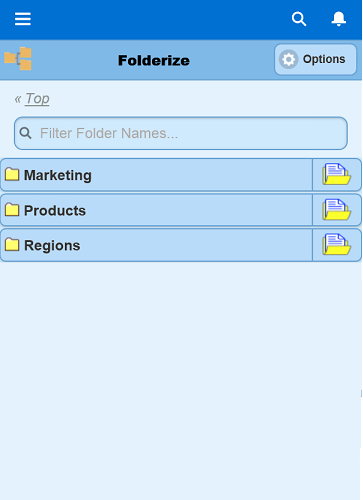
Folderize Mobile (or whatever your admin renamed it) will appear on your main menu if your administrator has enabled it.
Folderize Mobile actions:
- Click a folder name to see its subfolders.
- Click the document icon to see a folder’s documents.
- Click a document title to see its details or to download it.
- You also can filter by metadata within a folder.
- Searching by full text or across folders is not yet available in mobile; use the full site for search.
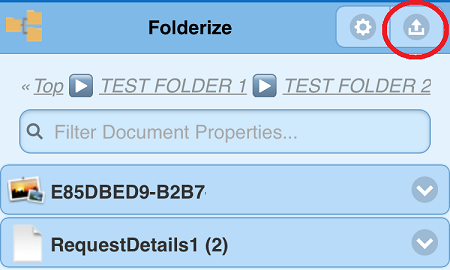
As of Folderize v. 4.7, when viewing a folder’s document list, an upload icon appears in the upper right. This lets you add documents, or snap and upload a photo, via your mobile device’s normal features for that purpose. Other document management functions, such as removing files or moving folders, must be done in the full-site app.
Enabling the Mobile Interface (For Admins)
To enable the mobile interface for your organization, go to:
Administration Setup | Mobile Administration | Mobile Navigation (also called Salesforce1 Navigation).
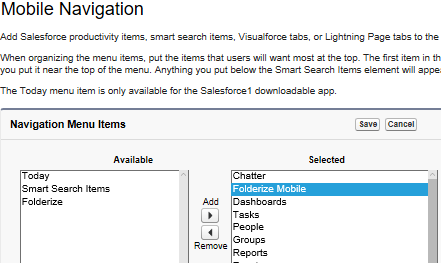
Look for the Folderize Mobile tab in the Available list (note, not the “Folder” tab). If it is there, move it to the Selected list. Move it up or down as desired. Save. If you don’t see it, go on to the next paragraph then return to this step.
The Folderize Mobile tab is linked to Visualforce page sharem__FolderizeMobile. It is possible that the tab and/or page defaulted to “disabled” for some or all Profiles if you originally installed a previous Folderize version before the Mobile feature was introduced. (New app components default to disabled for security reasons upon automatic update.) If this is the case, you need to enable the tab and page for Profiles or Permission Sets needing mobile.