Using Folder Tags
Basics
The Folderize Use Tags feature makes Salesforce files appear automatically in folders, wherever a document’s tag matches a folder’s tag. This can be useful in scenarios such as:
- You typically need documents to appear in multiple folders. For example, a document tagged “product 1” will appear in all folders tagged “product 1”.
- Many files need to be added or removed together. For example, you want to remove files tagged “version A” from all folders and replace with those tagged “version B”.
- You already added CRM Content tags to your files in Salesforce Classic.
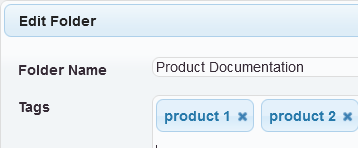 The Use Tags setting is OFF by default in new installs. Turn it on in Menu | Admin Tools. Then click a folder name and Menu | Manage Folders | Edit Folder to assign one or more tags to a folder.
New! As of Folderize version 4.11 (July 2021), you can add/edit/remove document tags directly within Folderize. This works in both Lightning Experience and Salesforce Classic. 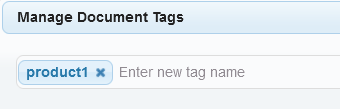 (Formerly, managing a document’s tags required going to the Classic document detail page.) To add tags to a Salesforce file: Folderize Menu | Manage Documents | Add From Salesforce, then click the tag icon.
Once a tagged file appears in a folder, you may manage its tags right from the folder. If you display the Tags column (set visibility in Folderize admin), just click the cell containing the tags you want to edit, and it will open the tag edit popup. Otherwise click the gear icon.
Permissions Aspects
Folderize will pull tagged documents into folders from the Salesforce Files repository and from any Library. Users will see only documents for which they have access privileges according the document sharing settings. Thus different users may see a different collection of files in the same folder. See Document Permissions for more details.
But documents associated with folders via tags do not inherit folder permissions if you have set folder sharing rules. Instead, these documents inherit their sharing rules from their Library or Files sharing settings. Thus for simplicity of administration, if you use folder permissions, you may want to leave “Use Tags” off and have only documents that are directly mapped to folders.
Technical Note
Document tags (aka CRM Content tags) are a native Salesforce feature and are stored as one of the file properties. Besides appearing in Folderize, these tags also may be seen on document detail pages in Classic. (Changes made at the document details page will be reflected in Folderize automatically.)
But CRM Content tags are distinct from other Salesforce features variously called Chatter tags, record tags, or Topics. Folderize will recognize only CRM Content tags.
Using Wildcards In Folder Tags
A folder tag with wildcards will match multiple document tags.
- To match any number of characters: {*}
- To match one character: {?}
- To match exactly two characters: {?}{?} and so forth for multiple characters.
The wildcard may be used at the beginning, middle, or end of a text string. The brackets are part of the wildcard designator and must be used. A symbol * or ? alone is treated as a literal tag character.
Examples:
- euro{*} matches tags euro, europe, european, eurozone, etc.
- contract{?}{?} matches tags contractor, contracted but not contracts, contracting
Admin Aspects of Folder Tags
To take advantage of folder tags as described above, the Use Tags setting on the Folderize Admin Tools page must be turned on.
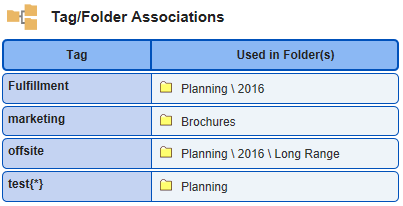
The Tags/Folders Overview button (also accessible from the admin page) takes you to a table showing each tag in use and which folder(s) it is associated with. If you don’t have access to this page, its permission setting may have defaulted to not allowed. Turn it on for the relevant Profiles or in a custom Permission Set by enabling Visualforce Page sharem.SMF_TagFolderAssociations.
When Use Tags is turned on, a “sync” process will copy document tags into a Folderize database. Each document having one or more tags will count once toward any Folderize document limit in effect, whether or not its tags match any folder tag. (See further information in a separate section about how limits work.)
Although sync normally works in background, there are some rare situations where sync might need user intervention:
- Initial Sync. When Use Tags is ON, when each user clicks the Folderize tab the first time, an initalize process runs for that user. This is a one-time operation. If initial sync fails for any reason, the user will be notified and given a button to initiate the process again.
- In-line tag edit. If you delete a document tag via in-line edit at the Classic document detail page, the change is not reflected immediately in Folderize, but only after the Folderize page is refreshed (or tab clicked).
- After limit exceeded. The System Limits section explains possible situations where you may need to run Re-Sync manually from the admin page.
Admin Actions
Re-sync. This has an effect only if Use Tags is on. Re-Sync will temporarily delete document and tag data in the Folderize database, and then refresh it according to the current state of your organization’s Content and Files collections. For a discussion of when you might need to use this, see System Limits in the subsection “Further notes that apply if ‘Use Tags’ is on”.
Clear unused tags. Tags used previously, but no longer, are retained by default in the Folderize database. This process clears them out, which may help make Folderize work a bit faster. We suggest you do this every few months or if you have made lots of changes to folder tags recently.