Using Lightning App Builder
Important Update!
The information below concerns use of Folderize’s original Visualforce user interface in Builder. As of version 4.20, a Lightning Experience page is available instead. For instructions to deploy that, see the Lightning Components help page.
Overview (Deploying the Visualforce Page in Builder)
If your organization created pages with Lightning App Builder, here are instructions for adding Folderize to object-records. (Before doing any of this, you must configure Object-Record Mode.) To open App Builder:
- Open Setup in Lightning Experience
- Find “App Manager” in the menu
- Find your Lightning app and click “Edit”
Adding a Folderize Button
This is one of two ways to enable Folderize on your object-record. A button will open a separate Folderize page containing files for the record. This has the advantage of showing Folderize in full width on a desktop. Depending on how many columns of file info you display (set in Folderize admin), this may be easier to look at than squeezed into a typical Sales Cloud app. To instead put Folderize in a frame directly on the layout, see separate discussion further below.
To configure the button:
- First follow the steps in the “Configure Button or Link” section of Add Folderize To A Layout. Then return here.
- After creating the button, there are three possible scenarios:
Record Page NOT Overridden
If the Record Page is not overridden in the App Builder (as described in next section), Salesforce uses standard page layout(s) for the object. If so, just make the button visible in the layout editor according to Add Folderize To a Layout. It then will be visible in your Lightning App also.
Record Page IS Overridden
If you created a new record page for your object in App Builder (as opposed to using the pre-existing page), then the standard layout for the object will NOT be used automatically. In this case, you need to drag and drop the “Highlights Panel” component onto your page (if not already done).
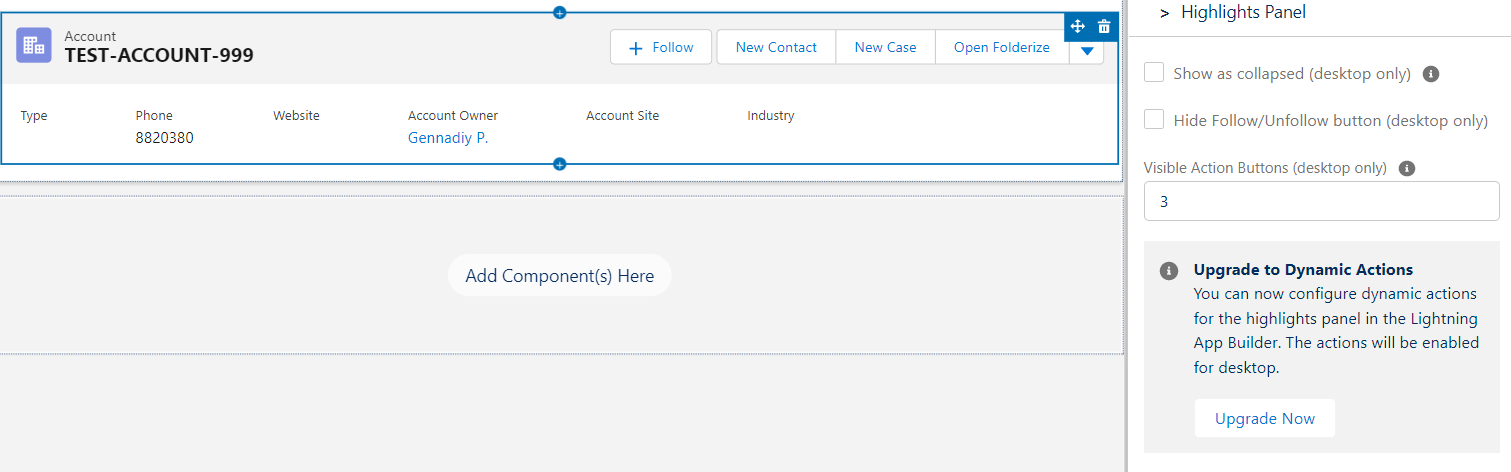
Then proceed in one of the following two ways, as applicable.
- Dynamic Actions NOT Used in Highlights Panel: Make the button visible in the layout editor as described in the “Record Page NOT Overridden” section above, and it will become visible in your App.
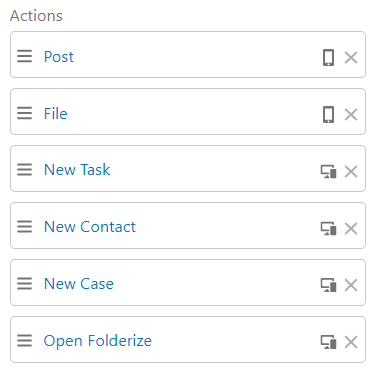
- Dynamic Actions ARE Used in Highlights Panel: In this case, the panel does NOT inherit buttons from page layout(s), but has its own list of actions. To add your button in the list of sections, click “Add Action”, type label of your button and click “Done”. After that, the button appears in the list of actions.
Add Folderize Section to Layout
In this section, instead of a button, we add a Folderize view in a new section directly on the layout. There are three possibilities:
Record Page NOT Overridden
If the Record Page is not overridden in the App Builder (as described in next section), Salesforce uses standard page layout(s) for the object. If so, just make the Visualforce page visible in the layout editor according to Add Folderize To a Layout. It then will be visible in your Lightning App also.
Record Page IS Overridden
If you created a new record page for your object in App Builder (as opposed to using the pre-existing page), then the standard layout for the object will NOT be used automatically. In this case, there are these ways to proceed:
- Use “Record Detail” component. First follow the instructions in the section “Add To Object Layout” of Add Folderize To a Layout. Then in App Builder, add the “Record Detail” component to your page. This will automatically contain the Folderize Visualforce page you added in the page layout editor.
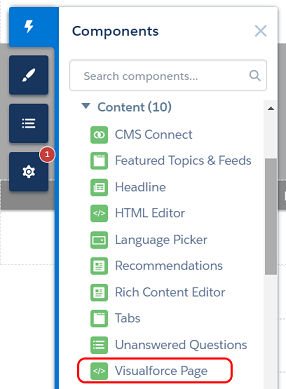
- Use Visualforce Component (as of Folderize v. 4.19+). Click the button Components at the left side. Find the Visualforce Page component in the list. Drag and drop the component to necessary place. In the right corner of App Builder you will see a popup window with the parameters of the component. Select the Folderize page, and set height (555 px, for example). Publish and check that the page is working.