System Limits
Free Edition
The free edition of Folderize will handle up to 500 documents. A document appearing in more than one folder is counted only once. There is no limit to the number of folders.
If the Use Tags admin setting is ON, documents or files having one or more tags are counted whether or not they appear in a folder. (Except documents shared only by users without Folderize access are not counted. If you disable access for users who previously used Folderize, you may re-initialize the count by running Re-Sync.)
To be clear: If you have hit the limit, Folderize will continue to work normally and be kept up-to-date with the first 500 documents it is given or that it finds by tag sync. You can continue to adjust which documents of those 500 appear in which folders.
The free edition otherwise has all the functionality of the unlimited edition. The free edition does not expire.
Sandboxes and Developer Orgs
We encourage prospective customers to test Folderize unlimited documents edition in a Salesforce Sandbox or Developer org. In Folderize Admin Tools, use Edition Manager to request this. Add a note to the form explaining your need.
If you already have unlimited documents edition in production: If you copy the org to sandbox, your unlimited documents license will be copied as well. User licenses will not be copied; however the Folderize app will default to a site license (automatically licensed for all users) in the sandbox. If you need to test user assignments in sandbox, ShareMethods Support can enable this — send the org id.
Folder Limits
In principle, there is no limit to the number of folders your org may have. There are, however, some practical limits in different circumstances.
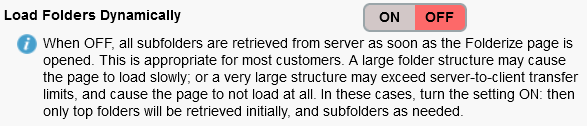
A large folder structure may cause the page to load slowly. A very large structure may exceed server-to-client transfer limits, causing the page to not load at all. In these cases, turn on the admin setting Load Folders Dynamically. Then only top folders will be retrieved initially, and subfolders as needed based on user navigation.
Even with Load Folders Dynamically on, having many folders at one level may result in the page loading slowly. For example, 1,000 top folders may take more than a minute to load when you first open the page. The same applies to 1,000 subfolders on one level under a single parent folder, when you open that branch. In such cases, it is preferable to reorganize the folders along the lines of these examples. (Use drag-and-drop to reorganize folders.)
- You could instead have 26 folders corresponding to each letter of the English alphabet; and distribute your 1,000 folders under these according to the first letter of the folder name.
- Or the parent folders could be geographic territories such as the 50 U.S. states; or dates such as months or years, etc.
But thousands of folders distributed among many branches should not exhibit the limitations mentioned above, assuming Load Folders Dynamically is enabled.
What to Do if You Reach Document Limit
The Folderize admin page will tell you how many documents it is handling according to the rules in the section above.
If you have hit the limit, and you need to make room for new documents, you may:
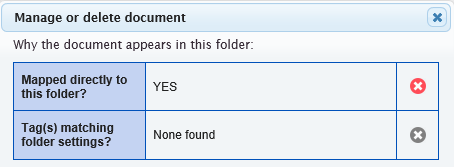
- Remove some documents from folders. Click the tools icon next to a document you wish to remove. Or to remove multiple files in a folder, click their checkboxes then Menu | Manage Documents and use Remove from folder or Delete from Salesforce.
- If Use Tags is ON, remove all tags from some documents or files. Or delete or archive those documents. This will reduce the count regardless of whether those documents are associated with a folder.
- Turn off Use Tags. You may wish to first map some files directly to folders via the Add Documents to Folder feature, so that they continue to appear without the tag association.
- Or contact ShareMethods to purchase an unlimited license.
Further notes that apply if Use Tags is ON:
Tagged documents that were ignored during any “limit reached” episode are not immediately sync’ed after you reduce the count by the actions above. This is because documents are sync’ed with Folderize only when first uploaded or when edited (events initiating a trigger). To bring Folderize fully into sync with Libraries/Files in such a case, run Re-Sync one time from the Folderize admin page. To re-sync a single document that may have been ignored, go to its detail page and click Edit | Edit Content Detail | Save. Documents that have been re-sync’ed by either method above then will be kept up-to-date automatically in Folderize with regard to changes of their properties and versions.
If you are not sure whether you exceeded the limit at some point (perhaps because other users added/deleted documents or tags), run Re-Sync one time to make sure Folderize is up-to-date with the Libraries and Files.
Note that Re-Sync is an Apex batch job. Monitor its status in Setup | Monitor | Jobs | Apex Jobs.