Set Permissions On Folders
Basics of Folder Permissions
By default, all users with Folderize access see all folders. You can override this default to set the visibility of each folder, or sets of folders, for various groups of users. Do this using Salesforce sharing settings as follows. (Step numbers in text below don’t correspond to step numbers in screen shot.)
- If you have set Folderize app permissions in user Profiles, check these settings: (These are set correctly by default in the standard Permission Sets of the Folderize package.) For custom object Folders, confirm that permissions View All and Modify All are OFF. (These permissions, if on, override sharing settings. System Administrators ordinarily would have these on by default.) Also confirm that custom tab “Folder” is enabled for Profiles of Folderize users.
- Go to Setup | Administer | Security Controls | Sharing Settings and click the Edit button.
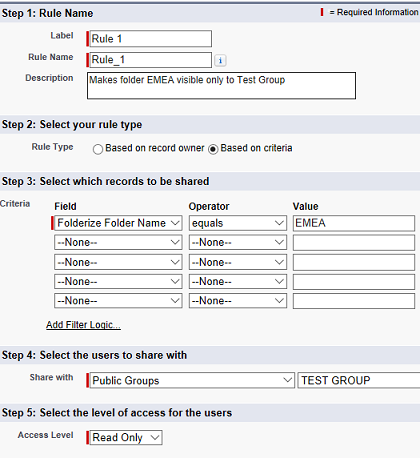
Defining folder sharing rules. (Step numbers here do not correspond to step numbers in accompanying text!) - In the list of objects, find the Folder object. Change its “Default Access” to Private for both internal and external users. (Also select Grant Access Using Hierarchies if desired.)
- Now your users have no access to folders except those they own (created); or those of roles below theirs (if you selected Using Hierarchies).
- Next set the desired Sharing by clicking the New button in the Sharing Rules section. (See “Notes About Sharing Rules” below.)
- Now folders are visible to users only according the rules you defined.
- On the Folderize Admin Tools page, turn on Documents inherit folder sharing. After this setting is active, when users add documents to a folder, a trigger will automatically “share” each document with the folder, meaning the document will inherit those sharing settings. (Also a batch job will apply this setting to documents already in folders.)
Note that Documents inherit folder sharing will not apply to documents appearing in folders via tag association. Instead, these documents inherit their sharing rules from their Library or Files sharing settings. Thus if you are using folder permissions, you may want to leave “Use Tags” off and have only documents that are directly mapped to folders.
Caution: If Folder object default access is left Public (step 3 above), turning on Documents inherit folder sharing will cause documents added to folders to become public regardless of their File or Library sharing settings.
Notes About Folder Sharing vs. Libraries
When users upload documents to a folder, they optionally can put them in a Salesforce Library at the same time. If so, the documents are shared with Library members automatically, so those users see those documents in Folderize folders as well. But with Documents inherit folder sharing is in effect, you have two possibly redundant methods of sharing the same documents. This may be confusing, even (or especially) for admins! Thus when using folder sharing, you probably want to turn off Show library menu when uploading documents (in Folderize admin).
To take this idea one step further, one way to take advantage of the folder sharing capability is to discontinue Library use entirely. In this way, all documents will be seen only according to their folder permissions. This mimics the behavior of a local network file system. To hide Libraries, go to Object Settings for your users’ Profile, and change the Libraries object to Tab Hidden.
Notes About Sharing Rules
If you use folder permissions, then whenever you add a folder or subfolder, think about this:
- Does the new folder match any existing sharing criteria? If yes, is that what you wanted? If not what you wanted, you likely either need to rename the folder (if the rule is based on folder names) or change the rule.
- If the answer to the first question above is no, perhaps you need to change the folder’s name to match an existing rule, or else add a rule. Otherwise the folder stays invisible to all users except the owner (who created it) and roles below (if using hierarchies).
- IMPORTANT: Subfolders do not inherit rules from their parent folder. Each folder needs its own rule(s), unless you have created rules that apply to multiple folders. Example: To create one rule matching a folder hierarchy, give all folders in the hierarchy a unique term in common. This sharing criteria:
Folderize Folder Name starts with SALES
will match all folders in this structure:
- Sales: USA
     -  Sales: Eastern
           -  Sales: New York
           -  Sales: Pennsylvania
Because of all the considerations above, you probably want restrict the privilege of adding folders, so that only admin users who are trained in these procedures may do so. To control who may add folders, see App Permissions.
Verify Permissions
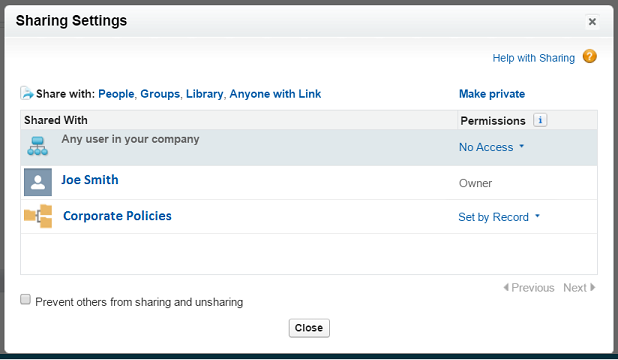
You may confirm that a document has inherited permissions from its folder as follows. Go to the document preview page and click File Sharing Settings then Sharing Settings. This is seen in an accompanying screen shot. It indicates that the document is “shared” with a folder called “Corporate Policies”. The permission value “Set by Record” means the permission is inherited from the folder record.
If a document is added to multiple folders, it may inherit different rules from each folder. If a user has access to multiple folders containing the same document but having different permissions (such as read-only and read/write), then the most permissive setting will apply to the document in all its locations for this user.
Note that even though a document inherits permissions from its folder, its owner may share it with other users or with a Library. When a document is shared with (published to) a Library, its sharing settings will show the folder permission as “Viewer” instead of “Set by Record” — but a user may have additional permissions on the document according to the Library.
To check who sees a folder according to the sharing rules:
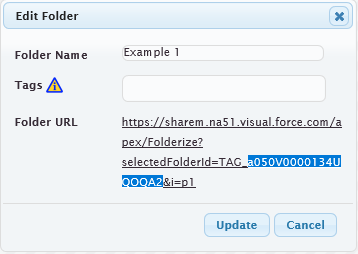
- Click the folder name, then Menu* | Edit Folder.
- Copy ID that appears in the folder URL between “TAG_” and “&”.
- Create a new URL based on the example below, but with the substitutions in the next two steps.
- Replace the Salesforce base URL (in this example, “na51.salesforce.com”) with the base for your organization.
- Replace the folder id (after “parentId=”) with the id copied from step 2 above.
https://na51.salesforce.com/p/share/CustomObjectSharingDetail?parentId=a050V0000134UQOQA2
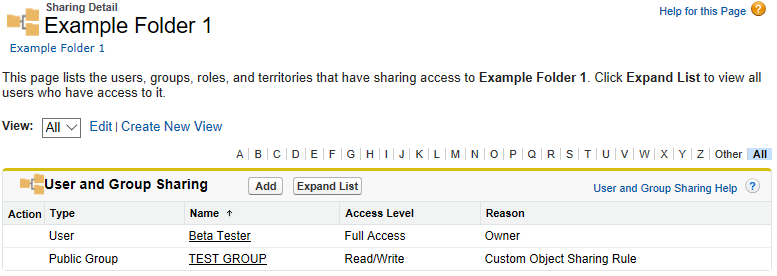
This URL now will open the Sharing Detail page for the folder. This shows you all users having access to the folder, and for each, the reason for the access.
Advanced Topics
When using folder sharing, be aware of these aspects of Folderize functionality:
- If a user (having appropriate permission) deletes a folder in the Folderize app, this will delete all its subfolders, irrespective of permission settings for the subfolders.
- Folder names must be unique on a branch, regardless of sharing; thus when setting a folder name, one might get a “duplicates not allowed” message, even when no duplicate is visible to that user.
- In sharing rules, if the “Access Level” conflicts with the user’s app permissions, the lowest-level permission will apply. Examples: (a) The rule for a particular folder is configured “Read Only”, but a user has the Folderize permission set allowing folder management. Or (b) access for the folder is configured Read-Write but the user has the Folderize Read-Only permission set. In both cases (a) and (b), the user will not be allowed to edit properties of that folder or add documents.
- A document in Salesforce can be shared with maximum 2000 entities (users, groups, objects, libraries, etc.) If a document already has been shared 2000 times, it will not inherit folder sharing even if the settings above are in effect, as this counts as one additional “share”. Thus if a document needs to be shared with many people, a group should be used.
- Ordinarily in Salesforce, a “Sharing” button enables users to share objects they own with additional users. But in Folderize, users do not have access to a Sharing button for folders they own. This is because they don’t have access to the Folder Custom Object: folder links are overridden to go to the Folderize page. If you want your users to have access to the Sharing button for folders, un-override the Folder Object View as follows:
- Go to Setup | App Setup | Objects and find the “Folder” object that was installed with the Folderize package.
- Scroll to the Buttons, Links, and Actions section and click the Edit link for the “View” action.
- On the new page select Override “With Standard Salesforce.com Page”. Sharemethods strongly recommends not overriding other actions.
Caution Using With Object-Record Mode
Be careful using folder permissions together with object-record folders. This is because of potential unintended consequences. Example:
- Account A is shared with Group B.
- Folder X is shared with Group Y.
Now upload a document to account A, putting it in folder X. It gets shared automatically with both Groups B and Y. Is this what you wanted? This happens because:
- Object-record mode causes the document to inherit sharing of account A.
- The folder permissions feature causes the document to inherit sharing of folder X.
* The “Menu” button was labeled “Settings” in app version 4.1 and before.