Search Across Folders
Folderize has filtering and searching, which are different. Filtering looks only at document properties, and only in one folder at a time. That is described on a separate page.
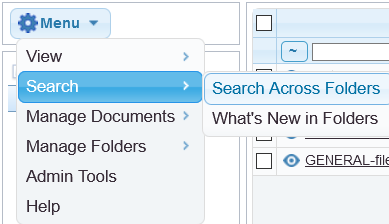
In the full web interface, for searching within your entire folder structure: click Menu | Search. (If you don’t see this option, your administrator needs to turn on Visualforce Page Search Across Folders in Salesforce Setup.)
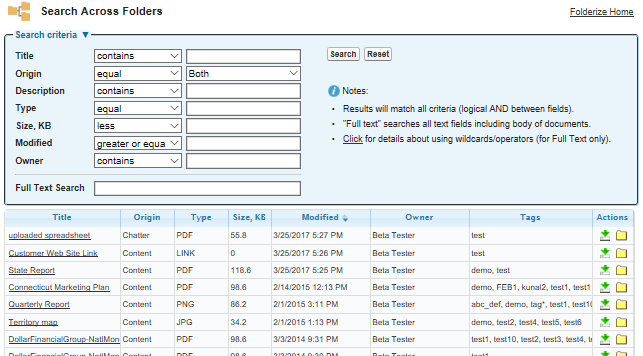
You can search by document properties (a.k.a. fields or metadata) and/or full text which includes the body of documents. (Full text also looks in custom text fields, if any.)
The document properties displayed in your search menu may differ from those in the accompanying illustration. Your administrator sets which fields appear for your org.
In the results list, click the folder icon to see where a document comes from.
You also can click the Search button without criteria to see all your documents.
The features described on this page are not available for object-record mode.
In the Full Text field only, these wildcards and operators are allowed:
- Asterisks match zero or more characters in the middle or end of your search term. For example, mi* meyers finds items with mike meyers or michael meyers.
- Question marks match only one character in the middle or end of your search term. For example, jo?n finds items with the term john or joan but not jon or johan.
- To search for a literal asterisk, question mark, or other special character such as ampersand, precede it with the character (backslash). For example “where are you?”.
- Use quotation marks around search terms to find an exact phrase match. This can be especially useful when searching for text with punctuation. For example, “acme.com”.
- AND Finds items that match all of the search terms. For example, john AND smith finds items with both the word john and the word smith, but not only one of those words.
- OR Finds items with at least one of the search terms. For example, john OR smith finds items with either john or smith, or both words.
- AND NOT Finds items that do not contain the search term. For example, john AND NOT smith finds items that have the word john but not the word smith.
- To include the words “and,” “or,” and “and not” in your search results, surround those words in double quotes. Otherwise they are interpreted as operators.
- Use parentheses to group search terms. For example: (Bob and Jones) OR (Sally and Smith).
Search Limitations
As of Folderize v. 4.17+:
- A search will return 1,000 files maximum, presented in order by most recent.
- But if results reach the 1000 limit, they may not be the most recent 1,000. Revise your query to narrow the number of files found.
In Folderize up to v. 4.16:
- It searches across 250,000 maximum documents in the database. (This limit is lifted in v. 4.17.)
- If using full-text criteria, it retrieves up to 2,000 results, selected by most recent. If not using full-text, it retrieves up to 5,000 most recent.
“What’s New”
On the search page there also is a What’s New button. This shows documents added to folders since your last visit.
Your last visit is considered the last time you clicked the tab for the Folderize app (or whatever your organization may have renamed it) in the full Salesforce site. Mobile views are not counted.
Also note that there is a way to see documents most recently updated. On the Search Across Folders page, click Search without any criteria, and it will return all documents…. then click either the Modified or Version Date column (depending on which one your administrator has enabled) to sort by most recent.
When you open the Folderize page, if there are new documents since your last visit, an icon will appear beside the Settings button. Click the icon to go to the What’s New display.
If your organization has the Use Tags feature enabled, What’s New does not show documents appearing by tag association. This is because tag dates are not tracked in the app, so we don’t know when such a document first appeared in a folder. Thus What’s New shows documents directly added (mapped) to folders only. But Search Across Folders results do include documents appearing by tag association, which you can sort by the Modified date.