Permissions – Overview
App Permissions
App-level permissions control access to the Folderize tab, and product features such as permission to add folders, edit folder properties, add documents to folders, or use Folderize administration. To manage these permissions, see the App Permissions page.
Folder and Document Permissions
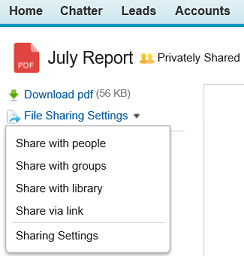
Folder and document permissions control which folders and documents are seen by which users. In Folderize “original” mode (not object-record mode), the default settings are:
- Document permissions are set by their File sharing settings, or by their Library (if published to a Library).
- Users see all folders (in which they may see different documents according to the document permissions).
The administrator may override these defaults by:
- Setting the visibility of individual folders using Salesforce sharing rules. Each rule may apply to multiple folders.
- In conjunction with folder sharing rules: Making documents inherit permissions from their folder. In this way no separate attention need be given to document sharing settings.
- Or if you wish to make all documents public automatically, turn on Documents inherit folder sharing on the Folderize admin page, while leaving Folder object public (Setup | Security Controls | Sharing Settings).
- See the Document Permissions help page for additional options
In “Search Across Folders” results, users will see only documents for which they have access privileges according to the settings above.
Note that Folderize documents also are available to users through the Salesforce Files/Content objects, IF the user has permission on the document via the sharing settings noted above.
Note to Salesforce administrators: In Folderize you will not see documents not shared with you, because Folderize respects document sharing rules for all users. However, you may see those documents in the Files tab, because admins by default have “View All Data” permission.
Enabling for Portal
For showing Folderize in a Portal:
- First you must enable CRM Content for the Portal. See the Prerequisites section.
- In addition, the settings noted in App Permissions need to be in effect for the Portal or Community user profile.
- Also review the permission settings in the folder permissions page.
If user settings above are not visible in a Portal Profile:
- Go to Setup | Create | Objects, and for each Folderize package object, click the edit link.
- Scroll down to Optional Features and check the Available for Customer Portal checkbox.
Enabling for Community
Folderize may be deployed in any Salesforce Community. For guidance, see Communities Setup.
Enabling Chatter Only Users
Salesforce.com has several types of Chatter User Licenses. At this time Folderize supports “Chatter Only” (Chatter Plus) but not “Chatter Free” or “Chatter External”. This is because the Folderize app needs access to CRM Content, and Chatter Only is the only Chatter user license that allows this.
To enable Folderize for Chatter Only users:
- Be sure they have CRM Content enabled. See the Prerequisites section on how to do this.
- See App Permissions to set your user access level as required.