Managing Folders
The capabilities described on this page require various permissions as set by your administrator. Thus some users may be limited in which features are available to them.
Add/Edit/Move Folder (Classic)
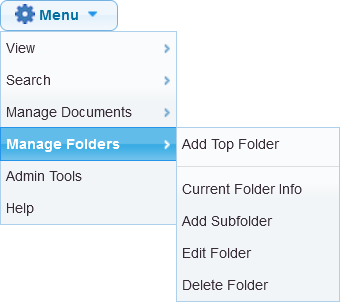
These features are available in the full-site interface (not mobile).
- Add a top level folder: click Manage Folders | Add Top Folder.
- Add a subfolder: click parent folder then Manage Folders | Add Subfolder.
- Change the name of a folder: Click the folder then Manage Folders | Edit Folder.
- Move a folder (with its subfolders) to a new location: use drag-and-drop.
- Delete a folder, see separate discussion below.
Lightning Interface
The LEX component interface in v.5.4 resembles Classic (section above). This changed in Folderize v. 5.5: buttons replace some functions that were accessed from the menu in previous versions.
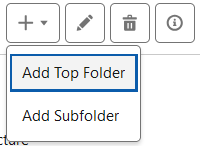
- Add a top level folder: click the “+” button.
- Add a subfolder: click parent folder then the “+” button.
- Change the name of a folder: Click the folder then the Edit (Update) button.
- Move a folder (with its subfolders) to a new location: use drag-and-drop.
- Delete a folder (trashcan button), see separate section below.
Upload or Download Folders
Folderize Replicator enables you to copy folder structures, with their files and subfolders, from/to your pc, a file server, or SharePoint. See the The Replicator Utility for more details.
Replicator also may be useful when you need to create many folders, such as during initial set-up. Create your folder structure in Windows File Explorer on your pc, then transfer the entire tree to Folderize using Replicator.
Delete Folder
When you click Manage Folders | Delete Folder, (Classic) or the Delete button (Lightning) this will not delete its documents from Libraries or Files; they only disappear from this location of Folderize. If you want to delete a folder with its files, you must delete the files first.
Note that permission to delete a folder follows Salesforce rules for deleting object records (in this case, the Folder custom object). Thus in addition to the appropriate object permission, one of these must apply:
- You are folder owner.
- If using folder sharing settings: You are in a hierarchy of roles above the owner; but only if Grant Access Using Hierarchies is enabled in the sharing settings.
- You have Modify All permission in a profile or permission set either for the Folder object or for all objects.
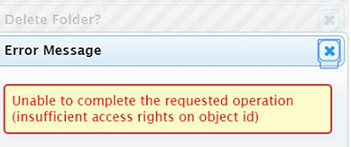
If you try to delete a folder without having at least one of the permissions above, you will get an error message similar to that in the illustration. A quick solution is to make yourself the folder owner as follows.
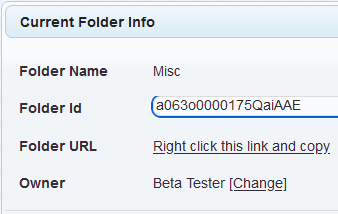
The menu Current Folder Info (or LEX button) shows the folder’s owner, and contains a link to the Salesforce page to change owner. (If using a previous version, see the work-around on the old version of this help page.) In LEX use the “info” button.
Associate Folders With Account or Opportunity
There are three ways to associate folders with Salesforce objects such as accounts and opportunities.
- See Link Records To Folders which is probably the simplest approach.
- Or you may configure Object-Record Mode, which makes your folder structure available directly on the object page.
- To accomplish an association in an impromptu manner: Click the folder name then (Classsic) Menu | Manage Folders | Current Folder Info or (Lightning) the info button. Copy the folder URL from the popup (not from your browser). Then you may paste this URL in your object record as a note, in a text field, or in a custom field created for this purpose. When a user clicks the URL, it will open the Folderize main page, with the designated folder displayed (if the user has permission to see the folder).