Managing Documents
The capabilities described on this page require various permissions. Some users may be limited in which features are available to them.
The features explained below have to do with adding files to one folder, or downloading from one folder. See the Replicator utility for transferring entire folder structures including subfolders and their files.
Upload New Documents
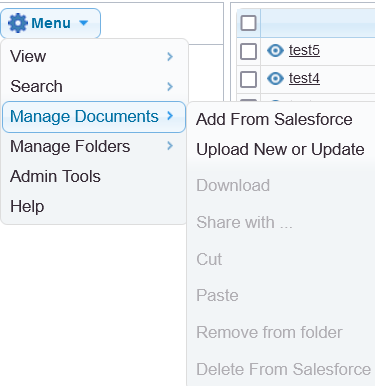
If documents are not yet added to Salesforce, click the folder name, then drag-and-drop the file into the document list area, OR:
- Folderize Classic: Menu | Manage Documents
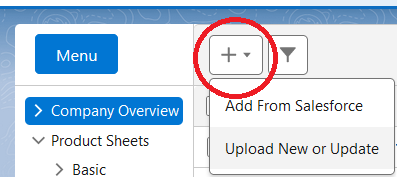
- LEX (as of v 5.4): Click the + button
Then click Upload New and use the local file selector.
Notes about uploading:
- You also may drag a file directly from an Outlook mail attachment.
- Multiple documents may be uploaded in one operation.
- If the name of a document you are uploading matches that of an existing one in the folder, you will be asked to confirm it as an update of that file.
- You may be shown an option to also add the file(s) to a Library, or share them with a Chatter Group — if your admin has enabled either of those features.
- To add a document to multiple folders, do not upload it multiple times. Instead, after the initial upload, follow the procedure in the section below “Add from Salesforce Files” to “map” it to additional folders.
- Uploading requires Salesforce system permission “API Enabled”. If your upload fails with an “API disabled” error message, please ask your administrator to turn this on. If your organization does not have Salesforce API (such as in Professional Edition), review next section.
- See separate pages about mobile upload or associating documents to folders via tags.
Upload Without Salesforce API
Customers of Salesforce Enterprise Edition (or higher) can skip this section.
Folderize needs the Salesforce API (Application Programming Interface) to upload. Some Salesforce editions do not have this, including Professional, Group, and Team editions. (These may be known by some other names that Salesforce has used over time.)
Even if you have one of these editions, Salesforce allows you to temporarily turn on the API for use by Folderize in full site mode (not mobile). When you initiate an upload, you will see one or more popup messages asking for an OK.
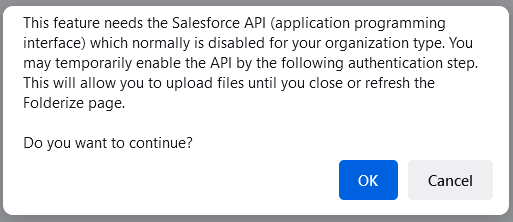
Note that in Lightning, a new window will open, with a visualforce.com URL instead of lightning.force.com. The upload you initiated before the “OK” will not take effect, and you will need to redo it in the new window. Then further uploads will work without additional authorization steps in the new window.
Add Documents From Salesforce Files or Libraries
This is the procedure to add to a folder, documents previously uploaded to Salesforce. It will only show files shared with you.
- Click the folder name, then:
Folderize Classic: Menu | Manage Documents…
Or LEX: (as of v. 5.4): Click the + button…
then Add From Salesforce.
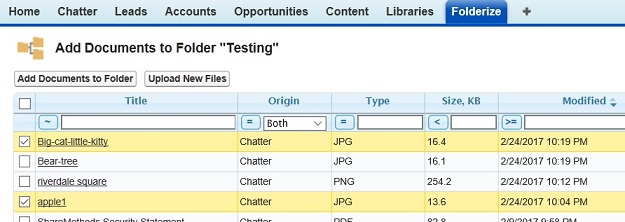
(If this choice does not appear on your menu, this is due to needed permissions not enabled. The administrator should see the permissions page about how to turn those on.) - Find document(s) by browsing or using filters. Sort if needed by clicking a column heading.
- In object-record mode, turn on the toggle Show Only Files Attached To the Record to select from the record’s Files related list (i.e., files uploaded to the record page but not yet added to this folder).
- Click checkboxes of the desired documents, then the button Add Documents to Folder.
- A document may be mapped to multiple folders by repeating this process.
- Technical note: Files attached only to records, but not also shared with you another way, will not appear in the list, due to a Salesforce Files search limitation. Exception: in object-record mode, when Show Only Files Attached To the Record in ON, all such files WILL appear.
Note to Admins: As a Salesforce system administrator, it is possible you see documents in the Files tab that you don’t find when using Add Documents From Salesforce in Folderize. This is because administrators by default have “View All” permission on the Files object, letting you see documents not shared with you. The Folderize app, however, respects Salesforce sharing rules for all users. In Folderize you will only find documents that you own, or that have been shared with you (by folder sharing rules; via a Library’s sharing settings; via Chatter group; or shared directly).
Downloading
Each file has a download icon under the “Actions” column.
For bulk downloading, click checkboxes of the desired files, then
Folderize Classic: Menu | Manage Documents | Download.
LEX (as of v. 5.4): Click the download icon.

Notes:
- Multiple files will be downloaded as a zip archive.
- Links which may appear in the document list but aren’t files, are not downloaded.
- Your browser may ask you to confirm what to do with each file. This behavior probably can be turned off but it is controlled by browser settings.
Share Documents
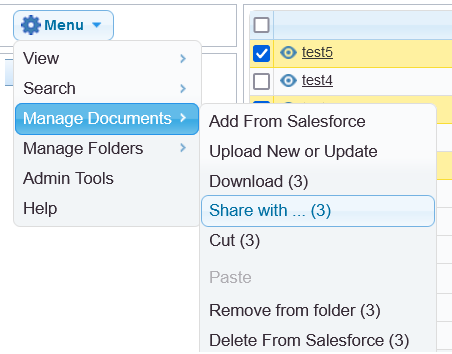
To share documents with users, your groups, or libraries:
Click the desired documents in a folder, then (Folderize Classic): Menu | Manage Documents | Share with…
In LEX, the Share icon will open the Classic UI and you can proceed as above.
Notes about document sharing:
- The sharing menu is available only in the full site interface, not in mobile.
- Internal users can only share files with others internally. Community users can only share with other community members.
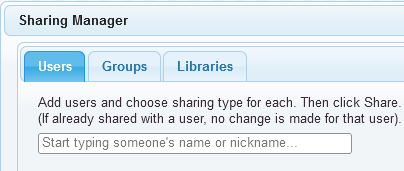 An option to share file(s) with Libraries or Chatter Groups also will appear if your admin has enabled either of those features. Library sharing requires author privilege in the library.
- There is no “unshare” control within Folderize; however you can unshare a file by clicking its title to go to its detail page, then using the Salesforce sharing controls.
Move Documents to New Folder
To move documents to a new folder, first select them by clicking their checkboxes. Then
Classic: Use Menu | Manage Documents | Cut.
LEX (as of v. 5.4): Use the Cut icon.
Then navigate to the new folder and use Paste. Files disappear from the original folder after the paste operation successfully completes.
Find All Locations of a Document
As noted in the previous section, a document may be mapped to multiple folders. You perhaps may need to find all folder locations for a document. To do so:
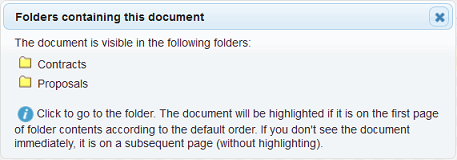
- Find the document in Search Across Folders.
- Click the document’s folder icon (at the right side of the search results).
- A pop-up will show you all folders where the document is mapped.
Remove Or Delete Documents
- Select a file or files.
Classic: Use Menu | Manage Documents.
LEX (as of v. 5.4): Click the trashcan icon. - Then “Remove From Folder” will leave the selected documents in Salesforce Files so that you may reuse them elsewhere.
- Or to use Delete from Salesforce, you must be the file’s owner.
- Note to admins: Delete From Salesforce appears even for Folderize read-only users, because such a user may own a file and be entitled to delete it. Attempting to delete a non-owned file will result in a permission error message.
- The gear icon at the right side of the document list also has a “remove” option. As shown below, clicking the top “X” icon will remove it from the folder, but not delete it from Salesforce. (The bottom “X” only applies if using the tags feature. Note, if you delete a document’s tags, this may remove it from other folders also.)
- You also may go to the document detail page to delete it, if desired. Documents deleted that way disappear from Folderize automatically.

Aside About Terminology
Putting a document into a folder by any of the methods above may be referred to in the app as “mapping” it to the folder. This is because documents ultimately are stored in the Salesforce Files repository, and are related to folders via document id.