Folders For Object-Records
Many customers need a folder structure to hold documents related to Accounts, Opportunities, or other “objects”. Folderize gives you two ways to accomplish that:
- Add Folderize to your object. Instructions to do this are below on this page. An overview:
-
- We call this method “object-record view”, as distinguished from the original Folderize page showing all the organization’s documents.
- Object-record view contains a folder structure pre-defined by a manager, automatically available on the layout of each record.
- Object-record view is not intended for users to create unique folders per record. But you may set a different folder structure for each object.
- Document sharing is inherited from the record.
-
- Link to Folders. This is not the technique described on this page, but is mentioned here to provide a complete understanding of the alternatives.
-
- This approach allows you to have different folders per record, which may be created on-the-fly.
- The object has a custom field containing, for each record, a link to its top folder. The link will take you to the Folderize main page with that folder pre-selected and its documents displayed.
- Document sharing is not inherited from the record, but instead, is determined by settings described in Document Permissions.
-
Introduction To Object-Record Mode
There are two ways to add object-record view to the layout:
- A button or link opens a separate view.
- Add it directly to the Details section.
In each case, the view shows folders containing only documents related to the current record.
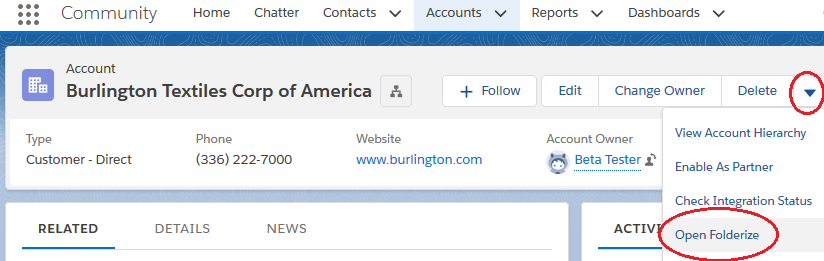
When a user adds a document to object-record view, the document inherits the sharing of the record. Any user having access to the record also sees this document in its folders. (You optionally may make document access read-only.)
Documents are stored in the Salesforce Files object. If the organization makes Files and/or Attachments available to users, they will see Folderize documents there (depending on document sharing settings) but without their folders. (See the Uploading section below about Libraries.) If the organization chooses to hide Files/Attachments, documents still will be available in Folderize object-record view as described here.
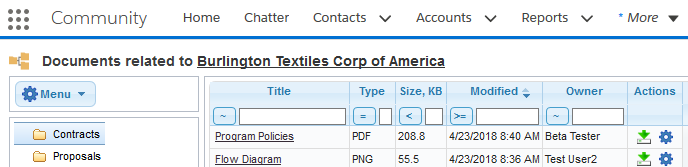
There also exists a full view, i.e., a page where the folder structure contains all documents from all records. The administrator may enable this for certain users, such as a group of managers.
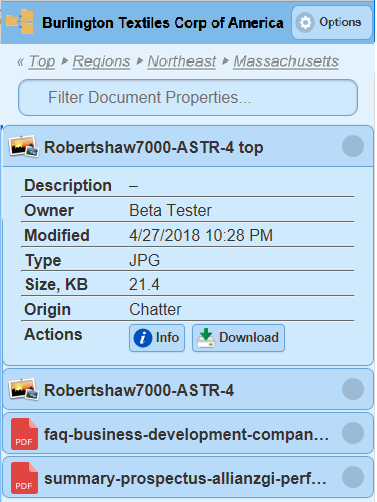
Object-record view is not intended for users to create unique folders per record. Instead, it is designed to have a folder structure devised in advance. But you may a different structure for each object; see separate section about that below. (If you need unique folders per record, see Link Records To Folders.)
To clarify: you may have a legacy document archive with a structure similar to this:
- Account 1
- Proposals
- Contracts
- Orders
- Account 2
- Proposals
- Contracts
- Orders
- etc.
In the above case, folders named “Account 1”, “Account 2”, etc., should not be part of the structure you set up for Folderize object-record mode. Instead, your top-level folders will be:
- Proposals
- Contracts
- Orders
In other words, you create only one copy of this structure, not multiple copies for each account. On account record pages, only documents related to that record will appear in the folders.
Object-record view may be enabled for any Salesforce object, including custom objects; and for multiple objects in the org.
About empty folders in object-record mode:
- Folderize Classic (Visualforce UI): Folders with no documents, including none in any subfolder, will be greyed out. This helps users navigate if there are many folders, but only a few contain documents for a particular record. This feature may be off by default depending on other settings; see your Folderize admin tools page.
- Folderize Lightning Component UI (LEX) as of v. 5.4: Folders are greyed out if empty of documents, but for technical reasons, a subfolder potentially may contain documents. (This is expected to change in a future release.)
If You Already Are Using Folderize
If you already have Folderize installed, your existing folder structure (i.e., the main Folderize page) becomes the default object-record structure as well. See separate section below about setting different folders per object. If using both the original and object-record view, then the original view will show all folders of all objects.
In object-record view, folders appear for each record empty of any documents that were added at the main page. On the main page, however, in addition to documents added there, you will see documents uploaded in object-record view, for all records that are shared with you. (This is what we call “full view” elsewhere on this page.) Click a document’s title to see which record it is related to (seen in the Sharing Settings section of its File overview).
Setting Up Object-Record View
Here is the procedure to set up object-record view. These steps do not necessarily need to be performed in the order given.
- Enable the main Folderize page only for user(s) who will manage the folder structure. Do this by giving them one of these permission sets:
- SMF Full Access (includes access to Folderize Admin Tools).
- SMF Documents and Folders Manager (excludes Admin Tools).
- Set up the folder structure. There are various ways to do this as follows.
- Use the Add Folder and Add Subfolder links on the Folderize Menu button.
- Use the Folderize Replicator utility to upload a folder structure. (It is recommended to upload empty folders only. Documents uploaded with folders at this time will be seen only in main view. To add documents to folders in object-record view, see the Uploading Documents section below.)
- You also can move folders by drag-and-drop, or rename them via Edit Folder.
- There is no limit on the number of folders or the depth of subfolders.
- See separate section below about setting different folders for different objects.
- Assign to other users one of the following permission sets, that make object-record view available to them.
- SMF Object-Record View: Documents Manager. This allows users to add documents to folders. Also see the bottom section of the App Permissions page about turning on API for these users.
- SMF Object-Record View: Read-Only User. Not allowed to add documents.
- On Folderize Admin Tools page, in the “Sharing Settings” section, decide “Type of files sharing with records”.
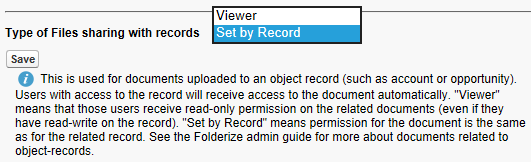
- Viewer means users (other than document owner) receive read-only permission on documents (even if they have read-write on the related record).
- Set by Record means permission for the document is the same as for the related record, for any user.
- If you change this setting after documents have been uploaded, the change will apply only to newly added documents.
- New document versions will obey the setting of version 1.
- If a document also is published to a Library, its sharing setting for the record automatically will be Viewer, plus whatever permissions the user receives from the Library.
- There is a similar setting in Setup | Salesforce Files. What is selected here will override that, only for files uploaded initially in Folderize.
 Also in Folderize Admin Tools: In the “Document Settings” section, turn off visibility of unneeded columns. Most likely, the Origin and Tags columns are not relevant.
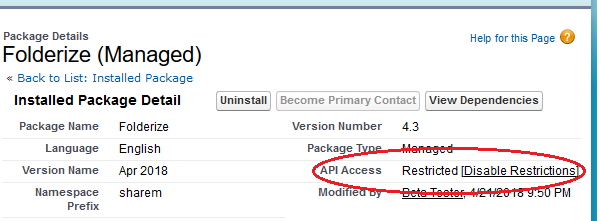
- In Setup | Installed Packages: Click Folderize. See if API Access says Restricted. This might appear if Folderize was installed prior to v. 4.5. If so, it is preferable to click Disable Restrictions. The restrictions are an old feature no longer used in Salesforce. Disabling restrictions simply allows Folderize to get the record name for the folders page title. Without disabling the restrictions, the page title will refer to a record id, not record name.
- If appropriate, assign additional permission sets for users (other than those of step 1) who may see the main Folderize page containing documents of all records (full view). See App Permissions for the possible permissions. Notes:
- A user having two or more Folderize permission sets receives the permissions of all sets combined.
- If a user lacks permission to see an object-record, its documents will not appear in full view for this user (unless the documents are shared with this user via other means, e.g. in a Library). Click a document title to see which record it is related to (seen in the Sharing Settings section of its File overview).
- With an appropriate permission set, users may add documents to full view, which will be seen only in full view.
- Configure a component to add to your object layout. For procedure, see Add Folderize To a Layout.
- Note that Search Across Folders returns results from all folders and from all records. Thus to avoid confusion, the search feature is hidden on record pages. If you would like it to appear, see Enable Search For Record Pages.
Uploading Documents
Users with appropriate permission (from step 3 above) may upload documents to an object-record. In other words:
- Go to the record’s Folderize view.
- Click the desired folder.
- Drag and drop into the documents pane, OR…
- Use Menu | Manage Documents.
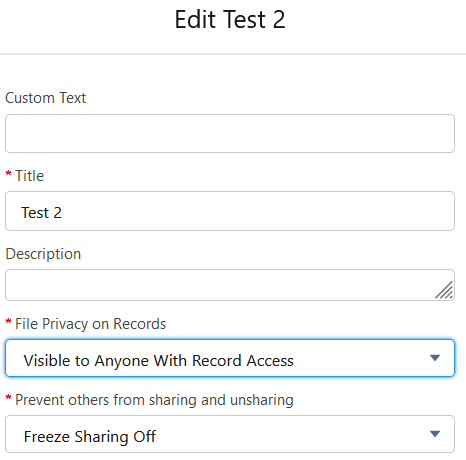 By default in Salesforce, documents added to a record inherit sharing from the record; so users who see a record also see its documents. However, a document owner can override this inheritance on a file-by-file basis. The nearby illustration shows the Edit File Details popup and the File Privacy on Records setting. The owner may change this to “Private on Records”. (If this setting doesn’t appear, you need to add it to the Files object layout in Setup.)
In Folderize Admin Tools, you may enable Enable Sharing Documents With Libraries. If ON, after upload, users have access to the Sharing Manager popup. If a Library is selected, the document will inherit sharing settings from both the record and the Library. The admin setting Enable Sharing Documents With Chatter Groups works similarly. For more details on how these options work see Document Permissions.
Technical notes about Menu | Manage Documents | Add From Salesforce:
- Due to a Salesforce limitation, this feature will not find files that are shared only with a record. *
- Folder depth is limited to 600 levels.
Set Different Folders For Different Objects
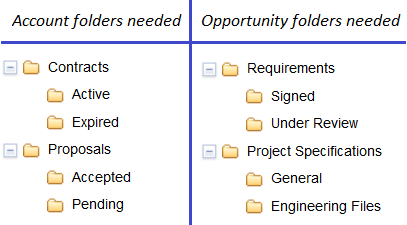
As of Folderize v. 4.5, it is possible to specify different folders for different objects. Suppose, for example, you want folders for Accounts and Opportunities as in the accompanying illustration.
To accomplish this: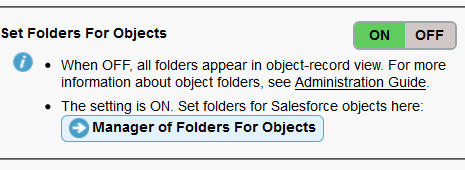
First, in Folderize Admin Tools, turn on Set Folders For Objects. Then…
- At the Folderize main page, create all needed top folders for all objects. (Or as many as you can think of! Yes you can add/change later!) Subfolders may be created at this stage also, or may be added later. Subfolders will inherit the setting of their top folder.
- In Admin Tools, click Manager of Folders For Objects.
- Select which objects should have which top folders. (See screen shot below, and compare those settings with the “folders needed” shown above.)
- An alternative to the above procedure is adding folders within object-record view itself. Example: At an Account page, click the Folderize button, then Menu | Add Top Folder. New folders now will appear for all Accounts, but not for other objects. This will be reflected automatically in Manager of Folders For Salesforce Objects.
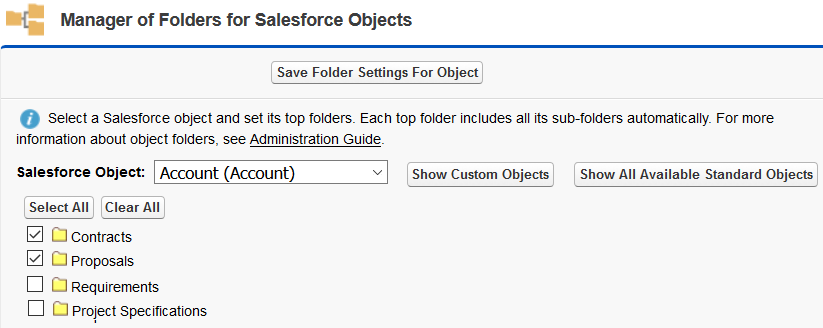
Additional notes about setting folders for objects:
- For each object, you need to separately add Folderize to the layout:
- For the Visualforce UI use either the page layout editor or Lightning App Builder.
- Or use the LEX UI.
- The order by which folders are shown, is controlled by the Folderize admin setting Folders sorting field.
- It is possible for multiple objects to share a folder branch (i.e., a top folder with all its subfolders); or you may set entirely distinct folder sets for each object.
- Keep in mind that for each object-record, upon clicking its Folderize button, only documents belonging to that record will be seen in these folders.
* Per “Note” near top of ContentVersion in Salesforce Developer Guide: ” . . . if a user only has access to a file because they have access to a record that the file is shared with, the file won’t be returned in a query . . . .”