Document Permissions
In Folderize, as in all of Sales or Service Cloud, a file must be explicitly shared to be seen by users other than its owner. To have the needed sharing take effect upon upload, the Folderize administrator may select one or more of the following configuration options, as appropriate for your circumstances:
- User share files by selecting Salesforce library.
- User share files by selecting Chatter group.
- Automatically share files via folder permission settings.
- Automatically share all files with all users.
- Share files by attaching to record (such as account or opportunity).
- Share files with Public Group(s).
- Automatically share via trigger.
Each of these options is discussed in a separate section below. If none of these options are configured, then files will default to private when uploaded.
New! As of Folderize version 4.13 (January 2022), users may share already uploaded files via Menu | Manage Documents | Share with… For more information, see Managing Documents.
User Selects Salesforce Library
Some of our customers use Folderize in place of Salesforce libraries; others use libraries in addition to Folderize. Whichever you do, you could make use of Libraries as a convenient file-sharing mechanism. Because files added to a library automatically are shared with its members, the files will be visible to those users in Folderize as well.
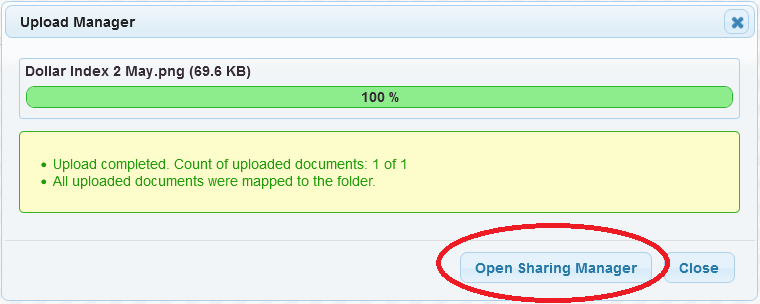
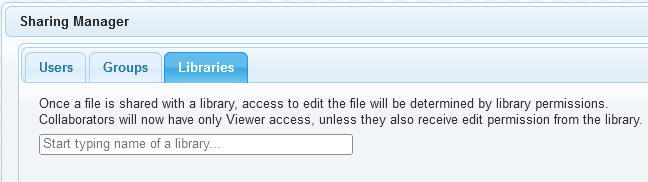
To take advantage of this strategy, create one or more libraries that correspond to the sharing groups you need, and make users “members” of them as appropriate. Then see the section “Sharing Settings: Libraries” of the Admin Tools help page. When configured as described there, users will have a tab Libraries in the Sharing Manager available as part of the upload sequence. (Sharing Manger also is available from the Manage Documents menu for previously uploaded files.)
User Selects Chatter Group
In Folderize Admin, you may turn on the setting Enable Sharing Documents With Chatter Groups. This will add a tab Groups to the Sharing Manager, as in screen shot. This is available both at upload and from the Manage Documents menu.
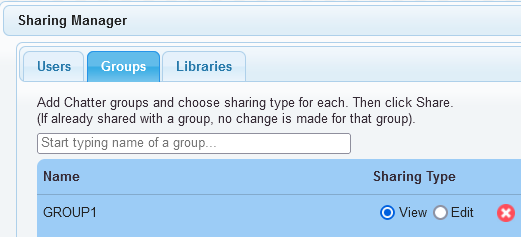
When sharing files with a Group, the user must select which permission type the group receives:
- View. Allows downloading or additional sharing.
- Edit. Also allows updating version or changing settings.
(But if a document also is shared via Salesforce library, the library membership permissions will override the sharing type selected here.)
When group sharing is OFF in Folderize admin, owners still may share Folderize documents with Chatter groups manually using normal Salesforce sharing controls. Also users other than the owner may do so if they have edit permission on a document via one of the other sharing mechanisms mentioned on this page.
Automatically Share Via Folder Permissions
By default, all users with Folderize access see all folders. You can override this default to set the visibility of each folder, or sets of folders, for various groups of users. This is accomplished via Salesforce sharing rules for the Folder object.
In addition, Folderize Admin has a setting Documents inherit folder sharing (off by default). With this setting active, documents automatically will receive whatever sharing you set for their folder.
For more details about configuration of this option, see the Folder Sharing help page.
Automatically Share With All Users
You can share all Folderize documents automatically, either read-only or read/write, with all users. This is accomplished with two settings working together:
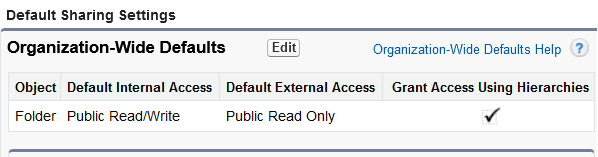
1. As part of the Folderize app “package” there is a custom object called Folder (or API name smFolder). In Salesforce Setup | Sharing Settings, this object is by default internally public read/write. Leave this default if you want users to be able to update files (with an appropriate Folderize permission set). Or you may change it to public read-only.
2. In Folderize Admin, turn on Documents inherit folder sharing (off by default). This will force all Folderize files to inherit the public sharing setting mentioned in the previous paragraph.
Share By Attaching To Record
In object-record mode, Folderize appears on object pages such as Accounts or Opportunities. This is distinguished from the original Folderize page showing a separate collection of documents not necessarily related to any records.
When a user adds a document to a record in Folderize object-record mode, the document inherits the sharing settings of the record. Any user having access to the record also sees this document. For more details about configuring object-record mode, see the help page Folders for Object Records.
Share With Public Group
“Public groups” are created and managed by an admin in Salesforce Setup. They are unrelated to groups created and managed by regular users (also called Chatter groups).
Salesforce does not enable users or apps to share files directly with a public group. But there’s a work-around: A library manager can designate a public group as library “member”. Then any files shared with that library are automatically shared with the public group members.
By combining this work-around with the Folderize library sharing feature (above), you can share Folderize files with a public group. Note that the user who will share files in this way must either be a member of the public group, or be added separately as a member of the same library.
Automatically Share Via Trigger
Perhaps you want to share files via one of more of the following entities, but not leave responsibility for doing so in the hands of users who do the upload.
- Library (which may encompass a public group).
- Chatter group.
- A list of specific users.
Instead, you want this sharing to happen automatically. You can accomplish this by setting an Apex trigger that will put the sharing into effect upon upload of new files. We have created ready-to-copy trigger code for the simple case where you want to share all new files the same way. A documentation page about this is in draft; until that is online, please request a copy from support@sharemethods.com.