Community: Configure Folder Sharing
This page describes how to share internal Folderize folders with external users (community members). By internal folders, we mean ones created by users (usually employees) in the main Salesforce environment, or in the environment not related to communities.
Contents
- View All
- Edit All
- Partial Access – Common notes
- Partial Access – Standard sharing features
- Partial Access – Sharing Sets
View All
This is the easiest scenario. But make sure that this is really what you want, because all folders created by internal users will become visible to external users. To configure this, follow these steps:
- Go to Setup.
- Open Sharing Settings.
- Click Edit.
- Find the Folder object in the list.
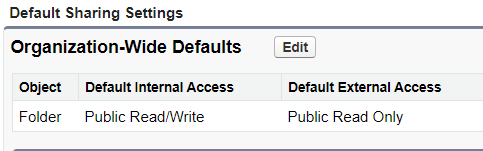
- Change the Default External Access in org-wide sharing settings from Private (default value in the package since v5.0) to Public Read Only.
Edit All
Follow the same instructions given in the View All section, but select Public Read/Write instead of Public Read-Only. Be careful with this option. In 99% of cases, you do not really need this, because external users will get too many rights.
Partial Access – Common notes
Note that sharing of a parent folder does not assume automatic sharing of its descendant folders, because each folder is a separate record in DB and, thus, is managed by Salesforce separately from others. Let’s take this simple example:
- Folder 1
- Folder 1-1
- Folder 1-2
- Folder 1-3
If only Folder 1 and Folder 1-1 are shared with a user, he will see only this branch in Folderize:
- Folder 1
- Folder 1-1.
If only Folder 1-3 is shared with a user, he will not see any of these folders in Folderize, because Folderize always starts rendering with top-level folders, but a top folder for Folder 1-3 is not available to this user.
It is possible to set folder names such one sharing rule conveniently covers multiple folders in a hierarchy. For an example, see the section “Notes About Sharing Rules” on the Folder Permissions help page.
Partial Access – Standard sharing features
This section describes how to share a subset of folders with your external users using standard sharing features in Salesforce. But these features are available only to external users with these Salesforce licenses:
- Customer Community Plus;
- Partner Community.
If your community users have more lightweight licenses, e.g., Customer Community, skip this section and go to “Partial Access – Specific sharing features”.
Manual: Sharing via User Interface
You can use the standard Salesforce UI features to manage access to a folder record.
By default, the Folderize package overrides standard actions for the Folder object to always redirect to the Folderize page when a user tries to open a folder record. But the direct links to the standard sharing features still work fine (just set correct domain and folder id):
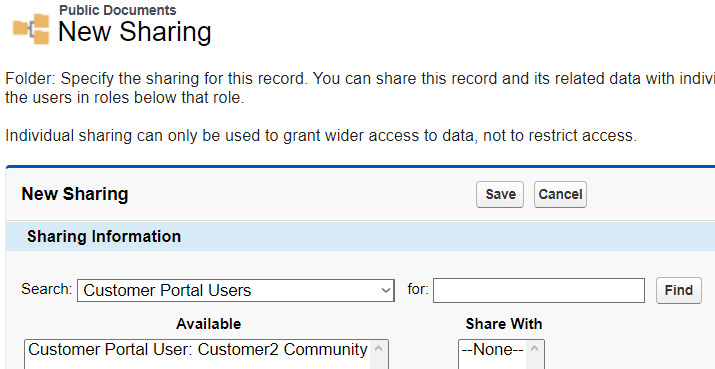
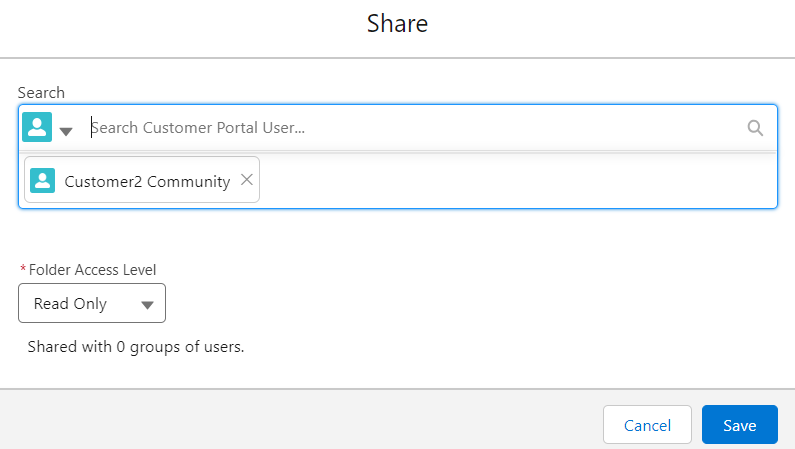
Of course, you may implement a custom page for admins that builds these links and makes opening them faster. Or contact us and suggest a feature (potentially, we could add a button in the “Current Folder Info” popup if customers are interested in it)!
For the purpose of this article it makes sense to mention that the standard functionality lets a user share a folder record with:
- particular customer portal user(s);
- all users with a specific portal role(s);
- all users in a specific group.
Automatic: Custom Sharing Rule
Follow these steps to share folders using a custom sharing rule:
- Go to Setup.
- Open Sharing Settings.
- Use the Manage sharing settings for: filter to show only settings related to the Folder object;
- Scroll down to the Folder Sharing Rules section.
- Click New.
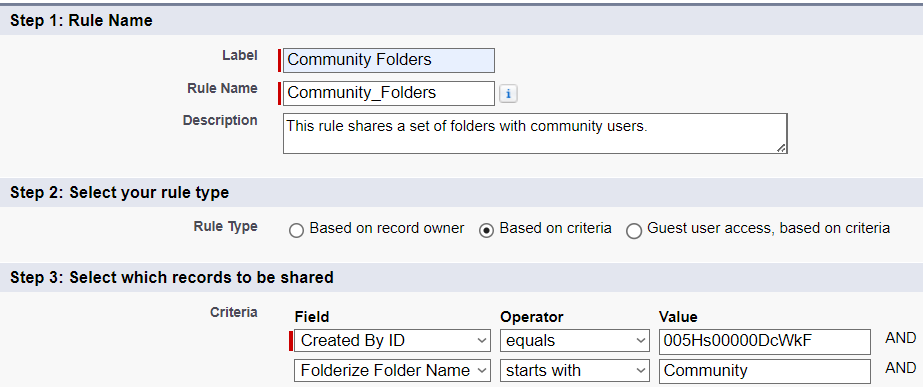
- Enter a rule’s label, name and description.
- Select one of these rule types:
- Based on record owner: this type lets you share folders owned by particular user groups or roles. This option is not popular in typical business cases, though it can be useful in some scenarios.
- Based on criteria: this type is much more flexible and more useful in most situations.
For example, a rule may select folders created by a specific system admin and having names which start with the phrase “Community – ”.
You can even create a custom Boolean field in the “Folder” object, which determines whether a folder record should be shared with a community (e.g., IsVisibleInCommunity__c), implement a functionality that fills this field (automatically or manually via UI) and then use the field in the criteria;
- Select the users to share folders with. These options are applicable in our case:
- “Portal Roles” or “Portal Roles and Subordinates”: select a role that is assigned to your community users.

- “Public Groups”: you may select the standard group “Customer Portal Users”. Or you can create your own Public Group and use it here:

- Select the level of access for the users. Most likely, you need “Read Only” access. “Read/Write” sounds like something unusual and may be a reason of data leaks in some cases:

- Save the rule and wait until Salesforce completes sharing recalculation.
Automatic: Apex Managed Sharing
This is a more complex programmatic way of configuring sharing of folders. From the other side, it is more flexible.
There is a special system object in DB that goes in pair with our sharem__SmFolder__c object and that stores information about sharing: sharem__SmFolder__Share (we will call it the “Share” object below). It has these standard fields:
- ParentId – stores an Id of a folder record.
- UserOrGroupId – stores an Id of a user or group.
- AccessLevel – stores an access level: Read or Edit.
- RowCause – stores a reason why the user or group is granted access. The default available value is “Manual”, but you also may create your custom reasons on the Folder object details page in Setup. Note that all shares for a folder with the “Manual” reason are automatically deleted by Salesforce when ownership of this folder is changed. Keep this in mind when selecting between a custom reason and the standard “Manual” reason.

So, what is apex managed sharing? It includes some powerful mechanisms and techniques, that are well-described in Salesforce documentation, but at the end it assumes creation, editing and deletion of records in the Share object.
Look at this simple script. It creates a new Share record and inserts it in database to share a folder with Id “a06Hs00000uPT3IIAW” with a user with Id “005Hs00000DcXH1”:
final sharem__SmFolder__Share share = new sharem__SmFolder__Share(
	ParentId = 'a06Hs00000uPT3IIAW',
	UserOrGroupId = '005Hs00000DcXH1',
	AccessLevel = 'Read',
	RowCause = Schema.sharem__SmFolder__Share.RowCause.Manual
);
insert share;
If you modify it a bit to get rid of hardcoded values and add it to right places, you will get your Apex managed sharing mechanism for folders. For example, it can be added to a trigger on the Folder object or to a custom page for admins with some specific UI.
Let’s look at the example of a simple trigger and a utility class:
trigger SMFTEST_SmFolderBgJobs on sharem__SmFolder__c (after insert)
{
	if (Trigger.isAfter && Trigger.isInsert)
	{
		SMFTEST_SmFolderSharingUtils.manageSharing_AfterFoldersInserted();
	}
}


public with sharing class SMFTEST_SmFolderSharingUtils
{
	//
	//Constants
	//
	private static final String COMMUNITY_USER_GROUP_ID = '00GHs000005IpKjMAK';
	//

	//
	//Private static methods
	//
	private static Boolean isCommunityFolder(sharem__SmFolder__c folder)
	{
		return folder.Name.startsWith('Community - ');
	}

	private static sharem__SmFolder__Share newFolderShareForCommunity(sharem__SmFolder__c folder)
	{
		final sharem__SmFolder__Share share = new sharem__SmFolder__Share(
			ParentId = folder.Id,
			UserOrGroupId = COMMUNITY_USER_GROUP_ID,
			AccessLevel = 'Read',
			RowCause = Schema.sharem__SmFolder__Share.RowCause.Manual
		);

		return share;
	}
	//

	//
	//Public static methods
	//
	public static void manageSharing_AfterFoldersInserted()
	{
		List<sharem__SmFolder__Share> shares = new List<sharem__SmFolder__Share>();

		for (sharem__SmFolder__c folder : (sharem__SmFolder__c[])Trigger.new)
		{
			if (isCommunityFolder(folder))
			{
				shares.add(newFolderShareForCommunity(folder));
			}
		}

		insert shares;
	}
	//
}
This trigger does not contain any real business logic. It simply handles the “After Insert” event for the sharem__SmFolder__c object and calls the utility. The utility, in turn, selects new folders with names starting with “Community -“ and shares them with the user group hardcoded in constants. This is a working example of a real APEX managed sharing mechanism.
Of course, the code above is too simple:
- The condition for a community folder is elementary, and, thus, this logic may be easily implemented via Point & Click using a custom sharing rule. A real use case when a trigger is needed, could include additional checks, SOQL queries, reading custom settings and etc.
- The trigger does not consider some additional scenarios. For example, it could also catch folder renaming.
- We use the “Manual” reason for simplicity, but we already mentioned above, that records in the Share object with this reason are deleted by Salesforce when folder owner is changed.
Another important part of this mechanism is recalculation of Apex Managed Sharing. This article does not provide a detailed description of this mechanism, but we will briefly touch upon main aspects:
- Why is it needed? Salesforce automatically recalculates sharing for all records on an object, when an admin changes its org-wide sharing default access level. The recalculation adds managed sharing when appropriate. In addition, all types of sharing are removed if the access they grant is considered redundant. For example, manual sharing, which grants “Read Only” access to a user, is deleted when the object’s sharing model changes from “Private” to “Public Read Only”. And if admin decides to change the level back to “Private”, the deleted sharings will not be restored in the Share object.
Or let’s come back to our example with a trigger. It works fine for new records, but how to apply the logic to folders that have already been created long time ago?
So, recalculation is needed to re-create all sharings from the beginning. - Technically, recalculation is based on the APEX class that represents a batch job. In our case, this batch job could look through all folders and apply the logic similar to what we have in the example with a trigger.
- Registration of the APEX class in the recalculation mechanism is carried out on the detail page for the Folder object (“Apex Sharing Recalculation” related list).

- Salesforce runs this job automatically according to its internal logic (see the first bullet above). But you also can run it manually by clicking the Recalculate Apex Sharing button (for example, it may be useful first time to apply your new logic or when the job completed with errors).
You can find more about this topic in Salesforce documentation by searching for the article “Recalculating Apex Managed Sharing”.
(Note: If needed, ShareMethods, publisher of Folderize, offers the option of a short consulting engagement to help configure Folderize for a Community according to your needs. If you might be interested in this, please submit the questionnaire.)
Partial Access – Sharing Sets
A sharing set grants site users access to a record associated with an account or contact that matches the user’s account or contact.
The problem of this approach is in absence of account or contact information in Folderize folders (you can only extract it from the reference to an owner, but it does not seem useful, especially if a folder was created by an internal user, because he does not have an associated account or contact). Therefore, you will need to
- create a custom field referencing to Account or Contact in the Folder object;
- implement a mechanism to populate this field according to your business rules. For example, it can be a trigger that catches insertion/update of folder records and fills the new field. Or it can be a UI page for admins where they may select folders and click a button to fill the field.
Create a Sharing Set
This section describes basic steps for creating a new sharing set:
- Go to Setup | Digital Experiences | Settings.
- Scroll down to the Sharing Sets related list.
- Click New.
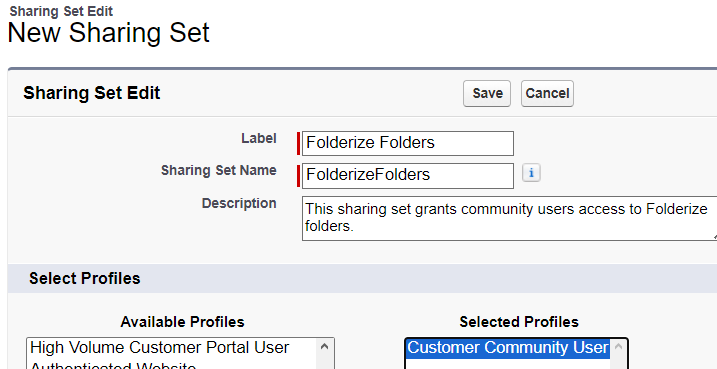
- Enter label, name and description of your sharing set.
- Select profiles of external users, who you want to share with.
- Select the Folder object. The page will be updated and a new entry will appear in the Configure Access section;
- Click the Set Up link to set up concrete rules. A new popup will appear. Set your rule and click Update. You can find examples of rules below;
- Click the Save button.
Share With One User
This scenario assumes you always need to share a folder with up to 1 external user. To be honest, it does not seem to be a real-life scenario, but let’s still look at this.
Follow these steps:
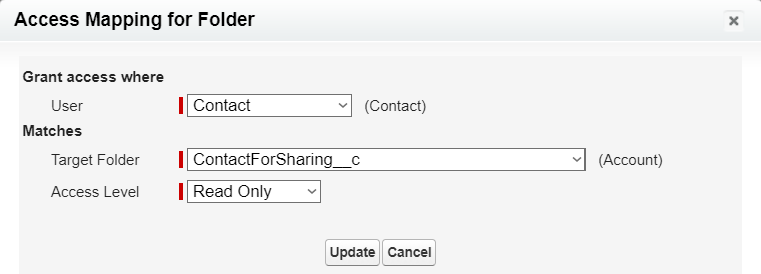
- In the Folder object, create a new custom lookup-field to Contact. Call it “ContactForSharing”;
- When creating a sharing set, configure a rule like this:
- Save the sharing set;
- Implement a mechanism that fills the ContactForSharing__c field in folders with Contact Ids according to your business logic.
(Note: If needed, ShareMethods, publisher of Folderize, offers the option of a short consulting engagement to help configure Folderize for a Community according to your needs. If you might be interested in this, please submit the questionnaire.)
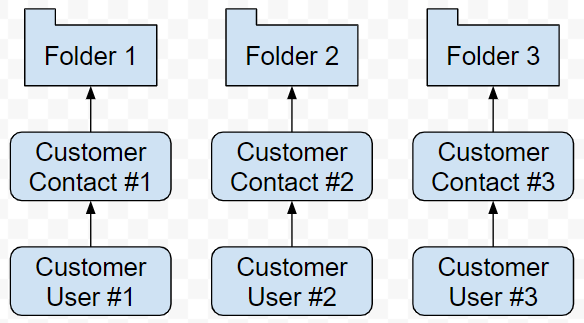
As a result, the sharing flow will look like this:
Share With All Users
Scenario 1
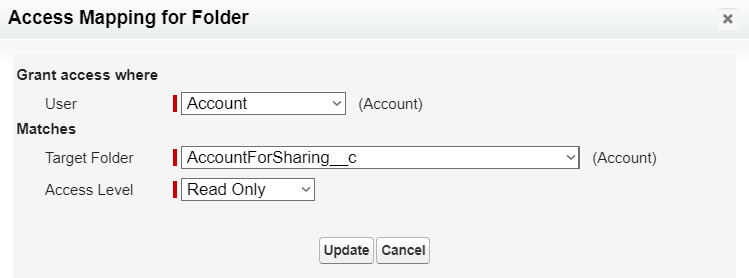
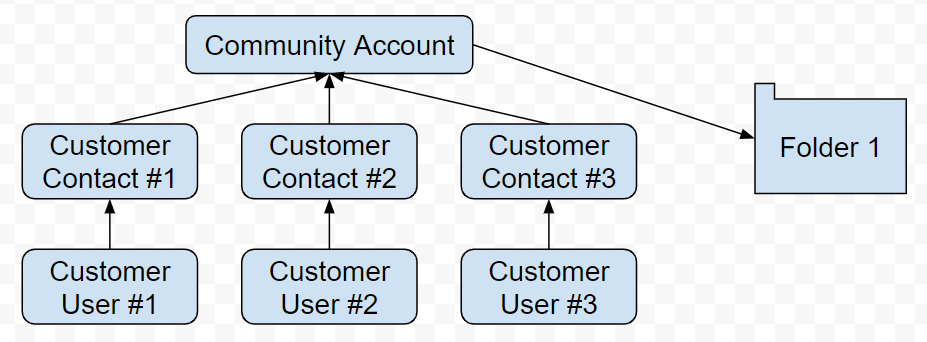
You do NOT use individual accounts for your community users. Each user has a contact attached to the same Account record:

Follow these steps:
- In the Folder object, create a new custom lookup-field to Account. Call it “AccountForSharing”.
- When creating a sharing set, configure a rule like this:
- Save the sharing set.
- Implement a mechanism that fills the AccountForSharing__c field in the Folder object with the Id of the “Community Account” according to your business logic.
(Note: If needed, ShareMethods, publisher of Folderize, offers the option of a short consulting engagement to help configure Folderize for a Community according to your needs. If you might be interested in this, please submit the questionnaire.)
As a result, if a folder has a reference to “Community Account“, then it gets shared with all customers, because their contacts belong to this account. The sharing flow will look like this:
Scenario 2
You use person accounts for your customers. Each user has a contact and an individual Account record:

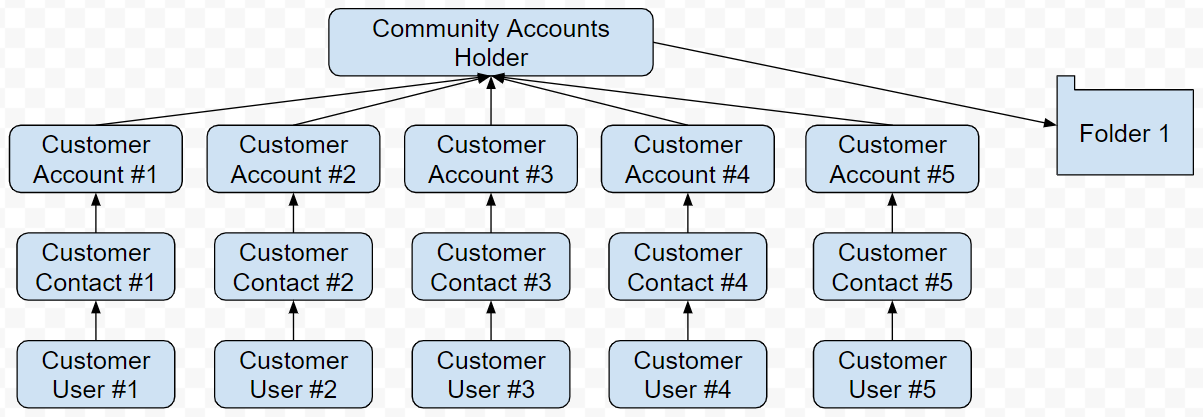
In this case the above rule will not work, because each user has its own account, while a folder may have a reference only to one Account record. Therefore, you need to group accounts for external users to make them refer to the same parent account (let’s call it “Community Accounts Holder”):
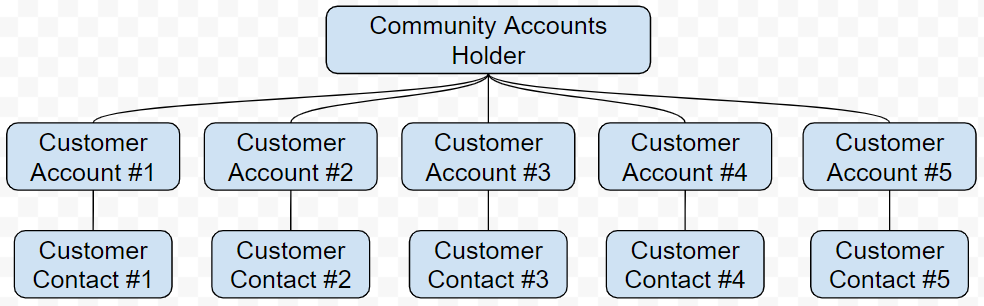
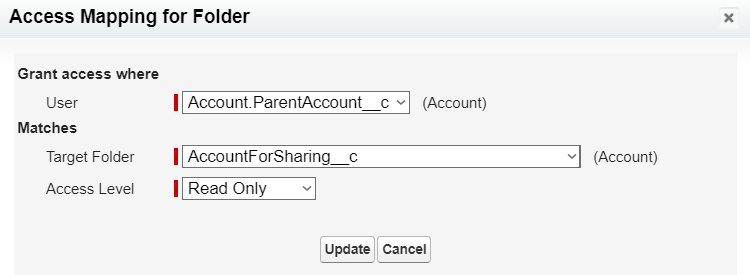
The first response to this is to group accounts via the standard ParentId field, but Salesforce does not allow to use this field for person accounts. From Salesforce documentation: “Person Accounts can’t be included in account hierarchies, contact hierarchies”. But you still can create a custom field with a lookup to Account, e.g., ParentAccount__c. Then you can implement a trigger on the Account object that catches insertion of accounts for community users and populates their ParentAccount__c field to set a common parent account for them. In this case, each customer account will have a reference to the same parent account. Then you can configure a rule using the custom ParentAccount__c field.
Let’s summarize the necessary steps:
- In the Folder object, create a new custom lookup-field to Account. Call it “AccountForSharing”.
- In the Account object, create a new custom lookup-field to Account. Call it “ParentAccount”.
- When creating a sharing set, configure a rule like this:
- Save the sharing set.
- Implement a mechanism that fills the AccountForSharing__c field in the Folder object with Id of Community Accounts Holder according to your business logic.
- Implement a mechanism that fills the ParentAccount__c field in the Account object to join all customer accounts under Community Accounts Holder.
(Note: If needed, ShareMethods, publisher of Folderize, offers the option of a short consulting engagement to help configure Folderize for a Community according to your needs. If you might be interested in this, please submit the questionnaire.)
As a result, the sharing flow will look like this:
Share With a Set of Users
Let’s say you need to share some folders with several selected customer users. This scenario is unusual and more complex for implementation, but is still possible.
The core idea behind the solution is that all users in a pseudo-group should have a reference to the same account (let’s call it “Account For Advanced Customers“).
Scenario 1
You do NOT use individual accounts for your community users. Each user has a contact attached to the same Account record:

But what if you implement a trigger or a custom UI to re-assign contacts of selected users to another account (“Account For Advanced Customers“)?
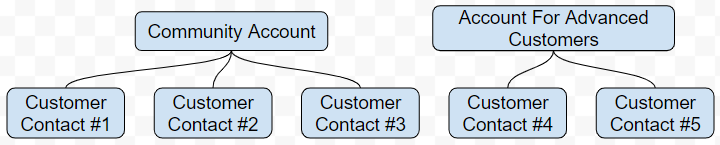
After that, you could use the rule described for the scenario #1 in the “Share With All Wsers” section. Follow these steps:
- In the Folder object, create a new custom lookup-field to Account. Call it “AccountForSharing”.
- When creating a sharing set, configure a rule like this:
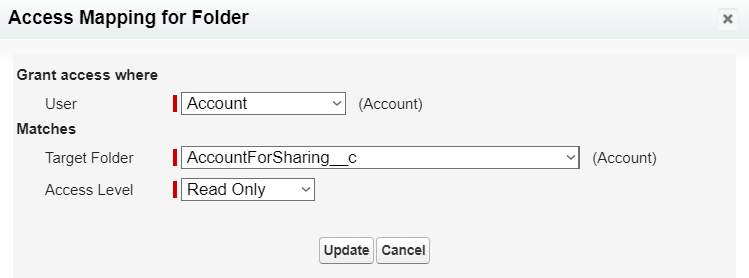
- Save the sharing set.
- Implement a mechanism that fills the AccountForSharing__c field in the Folder object with Id of Account For Advanced Customers according to your business logic.
- Implement a mechanism that re-assigns contacts of selected users to the Account For Advanced Customers according to your business logic.
(Note: If needed, ShareMethods, publisher of Folderize, offers the option of a short consulting engagement to help configure Folderize for a Community according to your needs. If you might be interested in this, please submit the questionnaire.)
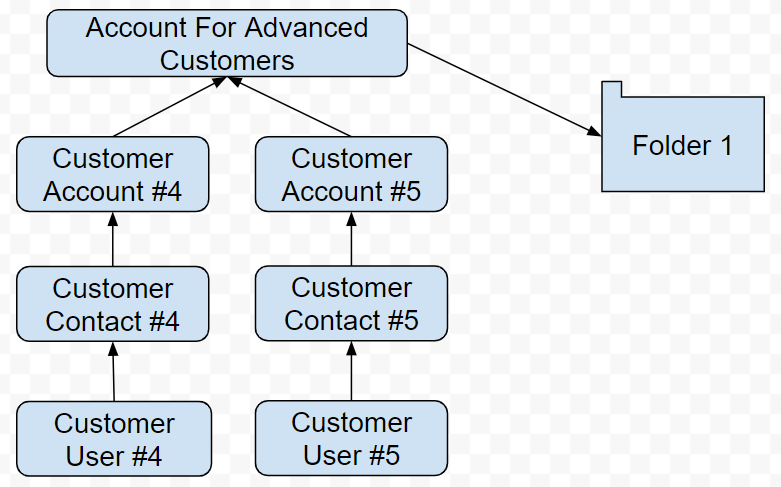
As a result, if a folder has a reference to Account For Advanced Customers, then it gets shared with all customers whose contacts belong to this account. The sharing flow will look like this:
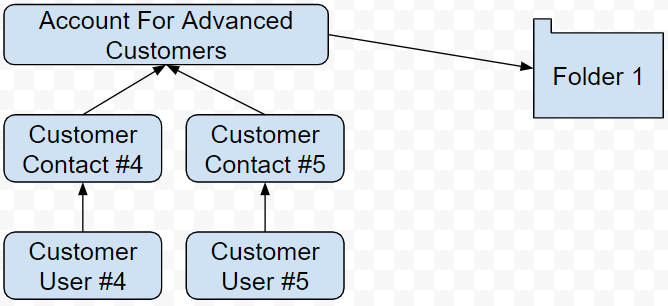
Scenario 2
You use person accounts for your customers. Each user has a contact and an individual Account record:

But what if you group customer Accounts by assigning them to a particular parent Account?
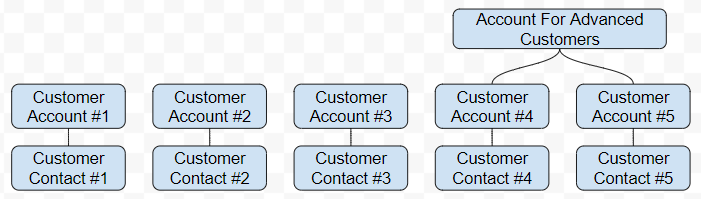
After that, you could use the rule described for the scenario #2 in the “Share With All Users” section. In that section, we have already mentioned that the standard ParentId field cannot be used to group person accounts under a particular parent Account and we can do this via a custom lookup-field to Account.
Let’s summarize the necessary steps:
- In the Folder object, create a new custom lookup-field to Account. Call it “AccountForSharing”;
- In the Account object, create a new custom lookup-field to Account. Call it “ParentAccount”.
- When creating a sharing set, configure a rule like this:
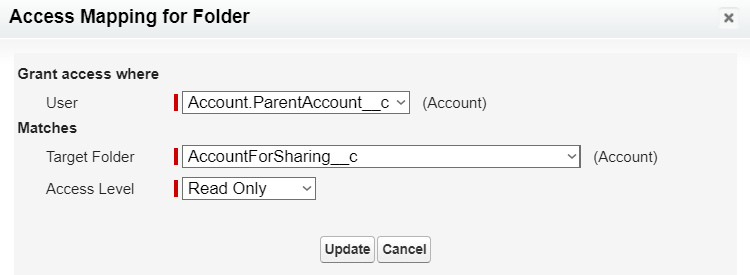
- Save the sharing set.
- Implement a mechanism that fills the AccountForSharing__c field in the Folder object with Id of Account For Advanced Customers according to your business logic.
- Implement a mechanism that fills the ParentAccount__c field in the Account object to join person accounts of selected users under Account For Advanced Customers.
(Note: If needed, ShareMethods, publisher of Folderize, offers the option of a short consulting engagement to help configure Folderize for a Community according to your needs. If you might be interested in this, please submit the questionnaire.)
As a result, if a folder has a reference to Account For Advanced Customers, then it gets shared with customers whose accounts are connected to Account For Advanced Customers: