App Permissions
App permissions control access to the Folderize tab as well as to product features such as permission to add folders, add documents to folders, or use Folderize administration.
As of Folderize version 4.0, the simplest way to control Folderize access is with the permission sets included in the app package. This page provides guidance for that. (This applies to Salesforce Enterprise edition and higher).
On the other hand, if you are using an earlier version of Folderize (3.x) , or if you wish to set permissions manually in profiles or in a custom permission set, see the Profile Settings page.
Initial Considerations
Beware that on installation, if you selected “Grant access to all users”, this grants all permissions to all users, and thus the Folderize permission sets will have no effect. A permission set can only extend privileges, not restrict them. In such a case, to use permission sets, your first step is to withdraw users’ access to Folderize. (This applies to Salesforce Enterprise Edition and higher.) If you have not yet extensively customized your folders, you may want to uninstall and re-install “for admins only”. Alternately, for each Profile, to withdraw the default Folderize access:
- In Visualforce Page Access disable all pages whose Namespace Prefix is sharem (or whose AppExchange package name is Folderize).
- In Object Settings disable these objects: Folders, SmDocuments, SmDocumentTags, SmFolderTags, SmTags, SmDocumentFolders, SmUsers, SObject-Folder Settings.
- Set as Tab Hidden these tabs: Folderize, Folderize Mobile, Folderize LEX, Folders.
- In Apex Class Access disable all classes whose Namespace Prefix is sharem.
Then the steps to assign permission sets are in different sections below, depending on which level of privileges you want to give the users.
Folderize App Permissions vs. Files Permissions
The settings on this page do not control which documents or folders a user sees. This page has to do with access to Folderize app features and controls. Document permissions are determined by one or more of these Salesforce sharing settings:
- File sharing, if document stored in owner’s “Private Library” (private files).
- Library sharing, if document published to a shared Library.
- Folder sharing, if that capability is enabled (and the Folderize setting Documents inherit folder sharing is on).
- Object sharing, if you are using Folderize object-record view (documents inherit record sharing).
Also see the discussion of folder and document permissions on the Permissions Overview page .
Using Permission Sets
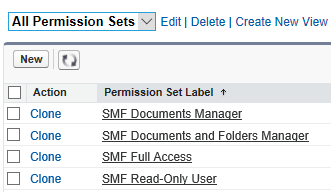
The Folderize permission set names all have prefix SMF (for ShareMethods Folderize). To assign one of the sets described below, click the set name then the button Manage Assignments, then the button Add Assignments.
To avoid clicking user-by-user to assign a set, click Create New View and use filter criteria to select users (and Save). You can select users, for example, by role, user type, department, or profile. Then on the Assign Users page you can click the select all box to assign all the users in the view at once.
Be aware that technically it is possible to give a user multiple Folderize permission sets. In such a case, a user receives the combined permissions of all those sets. Thus if, for example, you want to change a user’s permissions from Documents Manager to Read-Only, you must revoke the former as well as assign the latter.
Grant Full Permissions
Full Folderize permissions provides these privileges:
- Add or rename folders.
- Move folders (by drag-and-drop).
- Add or modify folder tags.
- Add documents to folder.
- Remove document from folder (gear icon).
- Delete folder (but see section about deleting folders on this page.)
- Use the Admin Tools page.
To grant full permissions, simply assign the SMF Full Access permission set. Also see below about API.
Read-Only Permissions
The most limited permission disallows all privileges listed above under “Grant Full Permissions”. This is the SMF Read-Only User permission set. It allows the user to browse folders and download documents, but not make any changes in Folderize. (But read again the section above about Folderize App Permissions vs Files Permissions.)
Note that a user with this permission set still will see file sharing controls if those are turned on in in Folderize Admin. That is due to Salesforce security features which allow users to share read-only files. But if sharing is set disallowed for a file, a user will receive an error message when trying to share it.
Disallow Folder Management but Allow Adding Documents
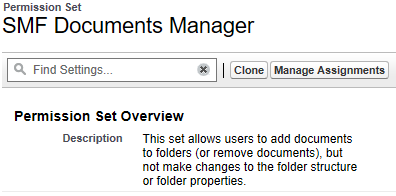
You may want users to add documents to folders (or remove documents), but not make changes to the folder structure or folder properties. This is accomplished with the SMF Documents Manager permission set. Also see below about API.
Allow Folder Management and Adding Documents
The SMF Documents and Folders Manager permission set allows the user to take all actions, except does not provide access to the Admin Tools page. The users may add/edit/delete folders and add/remove documents. Also see below about API.
Permissions For Object-Record View
In addition to the permission sets described above, there are two sets related to object-record mode. Those are to be used in conjunction with the instructions on the Folders For Object-Records page. SMF Object-Record View: Documents Manager also needs API permission (below).
Enable API For Uploading
In addition to the permissions listed above, users who will upload documents into folders need Salesforce system permission API Enabled. Because Salesforce does not allow app publishers to include this in permission sets, you need to enable it separately by one of the procedures below.
Enable API for users by one of these methods. Look for the API setting in the System Permissions area of Salesforce Setup.
- Turn it on in users’ profile(s).
- Create a new permission set for API, and assign it to users, in addition to the Folderize permissions mentioned above.
- Clone the needed Folderize permission set to create a custom set; add API; and assign.
Users without API may upload documents another way (except Read-Only users): Drag document into Salesforce Files, then in Folderize use Menu | Add Documents to Folder.