App Development
It is possible to populate or manage the Folderize database programmatically, such as through an APEX app or external .Net or Java program. This page describes the objects used and rules to follow in your app development. (Also see the page about resource use by triggers.) To make one-off changes to the Folderize database, see the Script Examples page.
Standard Objects Used By Folderize
ContentVersion and ContentDocument are standard objects that represent documents in Salesforce. What are called documents in Sales Cloud may be designated as CRM Content documents or Chatter Files or simply Files. These include files attached to other object records via the Files related list. For more information about these objects, see the Salesforce standard object reference links above.
When adding a document to a Folderize folder, we assume you have first inserted the document into the Salesforce database, meaning you have created ContentVersion and ContentDocument records. The id for these records is then used in the Folderize custom objects.
Folderize also uses standard object ContentDocumentLink to create the relationship between a file and record in Object-Record Mode. See more about using this object in the “Document Related to Account” example on the Script Examples page.
Custom Objects
The Folderize database is build around these custom objects: sharem__SmDocument__c
sharem__SmFolder__c
sharem__SmDocumentFolder__c
Following is a description of each and how to use them.
sharem__SmDocument__c
This represents a Folderize document based on a ContentVersion record. This object does not store file content or any file data, but just keeps a reference to a ContentVersion id. An SmDocument may be related to multiple folders, so, you should not duplicate it to show it in different folders.
There may be a limit on number of SmDocuments that you can insert in database. This limit depends on your Folderize license type, and can be found in the “Notifications” section on the Folderize admin page. Therefore, you need to check that the limit has not been reached before inserting SmDocuments. (Or you can insert new SmDocuments and catch exceptions.)
If you want to create several SmDocuments in one Apex transaction, it is better to group them in one list and execute a bulk operation.
If the Use Tags setting is enabled in your Folderize instance, Folderize automatically creates SmDocuments for ContentVersions which have tags, until the limit is reached.
Once an SmDocument is created, Folderize will automatically synchronize it with updates in a corresponding ContentDocument (upload of a new version, deletion, etc.).
These fields must be populated in a SmDocument record:
- Name. This is a standard field. You can populate it with the title of a ContentVersion. This name is not used in the Folderize UI, but may be useful in some cases. This field is not updated upon changes to its ContentVersion title.
- sharem__ContentDocumentId__c. This is the Id of a ContentDocument that the ContentVersion belongs to (ContentVersion.ContentDocumentId).
- sharem__ContentVersionId__c. This is the Id of a ContentVersion.
- sharem__Origin__c. This is the “origin” of a ContentVersion (ContentVersion.Origin). It must be either “C” (CRM Content files) or “H” (Chatter files).
sharem__SmFolder__c
This represents a Folderize folder. There is no limit on number of folders. If you have thousands of folders, you probably need to enable the dynamic loading of folders setting (Folderize v. 4.1+) to make the UI more responsive.
If you want to implement deletion of SmFolders, then your code will be responsible for deletion of all its subfolders.
These fields must be populated in a SmFolder record:
- Name. Standard field. Name of a folder in the Folderize UI.
- sharem__ParentFolder__c. Id of a parent SmFolder, or null if it is a root folder.
- sharem__IsRoot__c. Boolean flag that indicates whether it is a root a folder.
- sharem__SystemFlag__c. This field is new as of v. 4.15 (Apr. 2022). It needs a value of 580357149 or insert will fail. This is to prevent users creating folders at certain places in the Salesforce native UI that circumvent the app’s logic and could allow invalid data to be entered.
sharem__SmDocumentFolder__c
This represents a mapping between SmDocument and SmFolder. To make an SmDocument visible in a folder, you need to create this mapping. If a document needs to be shown in several folders, you need to create several mappings between this document and these folders.
No limitations are applied to this object.
These fields must be populated in a SmDocumentFolder record:
- sharem__Document__c. This is the Id of SmDocument.
- sharem__Folder__c. This is the Id of SmFolder.
“Add new document to folder” flow
Below is the algorithm that you should follow when adding a file to a folder. We assume you already have a ContentVersion (cv1) and a SmFolder (f1). If using Object-Record Mode, we also assume you have created the link between the file and record using ContentDocumentLink.
Please refer to the notes following the diagram.
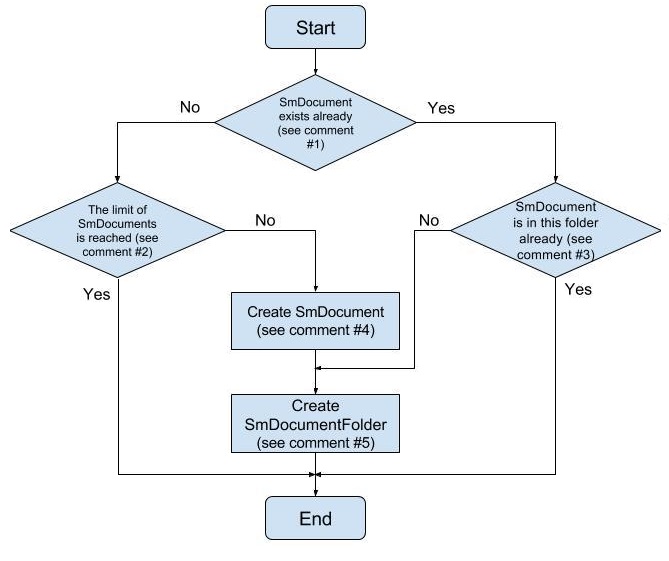
1) Check whether SmDocument exists for your ContentVersion (if you’re sure that this is true, you can skip this step). You can use this query:
“SELECT Id FROM sharem__SmDocument__c WHERE sharem__ContentDocumentId__c = :cv1.ContentDocumentId LIMIT 1”.
If the SmDocument exists then remember it in a variable (smDoc1).
2) Check that the limit of SmDocuments is not reached (unless you use “Unlimited Edition“ Folderize license). For example, you can perform the query like this:
“SELECT count() FROM sharem__SmDocument__c LIMIT your_limit”.
If the obtained count is less than the limit, then you can continue. If the limit is reached and you try to create a new SmDocument, then you should get an error (exception) in your code. If you can catch and handle it, then perhaps you may skip this step.
3) Check that your ContentVersion is not in this folder already. If you’re sure that this is true, you can skip this step. You can use this query:
“SELECT count() FROM sharem__SmDocumentFolder__c WHERE Document__r.ContentDocumentId__c IN :cv1.ContentDocumentId AND Folder__c = :f1.Id”.
4) Generate and insert a new SmDocument (smDoc1) and remember the Id of the created record.
5) Generate a new SmDocumentFolder mapping using f1.Id and smDoc1.Id and insert it.
Insertion of SmDocument and SmDocumentFolder should be executed in transactional manner, i.e., you should either complete both actions successfully or roll back their results.
Managing Documents and Folders Through APEX
Folderize does not yet have a public API. However, Folderize is built in APEX, and many functions that you need may already exist. Ideally, ShareMethods would publish a global APEX class with a ready set of utilities that you can call in your code. This has the potential to save you time and also provide backward compatibility with future releases. If you would like to have access to Folderize’s internal functions, we invite you to send us an outline of your requirements as input into our API development.