Admin Tools
The Admin Tools page has a variety of functions that are summarized here. This does not cover settings dealt with elsewhere in this help site; for example the “Use Tags” setting is explained on the Using Folder Tags page.
Edition Manager
This is needed only if you have previously arranged with ShareMethods to upgrade your edition. More information about the limits of the free edition is on the System Limits page. Use this page to upload your activation key for any edition you license from ShareMethods.
Advanced Settings

Wherever Folderize displays a list of files, “behind the scenes” it has made a database inquiry and pulled a batch of file metadata into the browser. The size of this batch is controlled by the setting Maximum documents retrieved from server in one operation. The setting default is 15,000, and allowed values are between 1,000 and 25,000. Reduce the number if needed for performance reasons. Increase it if you have many documents and do not encounter timeouts in retrieval operations. Note that the longer your average file names and descriptions, the greater the transfer batch size, which may require a lower value for this setting.
In object-record mode, even if the setting is at the maximum 25,000, the maximum is reduced to half that, 12,500, for reasons related to the complexity of the database query.
In any case, if the number of files available on server exceeds the number that could be pulled into the browser, a button Load More will appear (v. 4.16+), giving you the opportunity to retrieve all the folder’s files in successive database calls.

“Load More” functionality is not available in the mobile UI. The number of files per folder that can be viewed in mobile are those contained in one transfer batch. If a batch is too large for resources on the device, the transfer will fail; the solution is to reduce the setting.
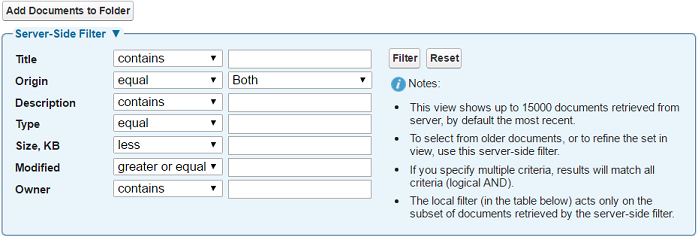
Also affected by this setting: the page Menu | Manage Documents | Add From Salesforce. Here Folderize attempts to retrieve a list of all your Salesforce Files to select from, but it is limited by the setting above. If there are more files than the value of the setting, a message will appear as seen in the following screen shot, providing a “Server-Side Filter” to retrieve older documents.
Folder Sorting
At each level of your hierarchy, folders are shown in order according to one of these sorting options:
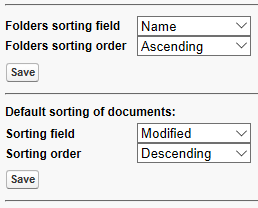
- Alphabetically by name. This is the default setting.
- Created Date. Either the newest or oldest folders will be at top, depending on whether you select ascending or descending order.
- Last Update of Folder Name. This is similar to Created Date, but uses the last-modified date of the folder record. One way to take advantage of this would be force a particular folder to the top of the list (using descending order). Just edit its name slightly and save. (Then change it again to its original name, if desired.)
Document Sorting
In the document list for any folder, documents are sorted by last-modified date, newest first, by default. On the admin tools page, the administrator may change the default to sort on any of the other columns.
Note that regardless of the default sort setting, users may sort documents by clicking a column heading. The first click sorts ascending; second descending; third cancels sorting. If multiple columns are clicked, a primary and secondary sort are performed, with the sorting precedence going left-to-right.
Filter Bar
All folders have a filter available, but the administrator can hide it by default. When hidden, users can access the filter by Settings | Show Filter Toolbar. Filtering is automatically available in the mobile interface.

Note that filtering is different from searching. Filtering looks only at document properties, and only in one folder at a time. For more advanced search features including full-text, see Search Across Folders.
Visibility of Columns
The administrator may turn off columns of the document list. For example, if your organization does not use document tags, you probably want to turn off the tags column. This setting will apply to all users and all folders.

Columns can be re-sized by the user, but Folderize does not at this time have a way to reorder the columns, or to display custom fields in a column. This may be offered in a future release. Please contact Folderize support and let us know if this is needed.
Sharing Settings: Libraries
When uploading documents to a folder, it is possible to add them to a Salesforce Files Library at the same time. This is one possible way to set document sharing. (See Document Permissions for more about document sharing settings.)
If you wish users to have this option:
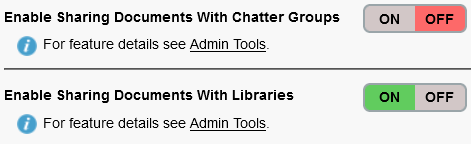
1. Turn on Enable Sharing Documents With Libraries. This is OFF by default except it was ON by default in Folderize packages that were installed prior to 17 Feb. 2020 (v. 4.6).
Note: This button also controls whether users see a library option in the Sharing Manager, which is the facility called forth via Menu | Manage Documents | Share with…
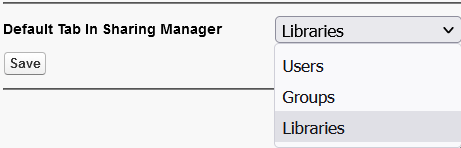
2. For Default Tab In Sharing Manager (v. 4.16+), set to Libraries.
3. For Sharing Manager On Upload (v. 4.16+), set to Open Automatically.
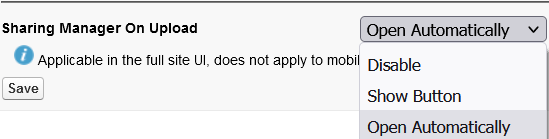
With these settings, during upload users will automatically see the option that allows them, but does not require them, to select a Library in which they have author privilege.
Technical notes about library menu:
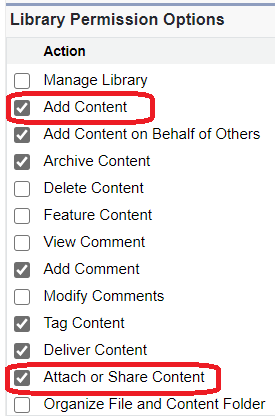
- It is possible to customize library permissions. Folderize uploader will show only libraries for which the user has action Add Content. (Note that the library administrator does not by default have this!) Also the user needs action Attach or Share Content if Folderize admin setting Documents Inherit Folder Sharing is on. As of Salesforce Spring ’20 release, you can change these settings only in Classic, but they do affect library privileges in Lightning. In classic, find them at: Setup | Customize | Salesforce Files | Content Permissions.
- A user may be a library member by being in a group which is a member, or even in a group which is part of another group, etc…. Folderize will look for a user’s library privileges to 10 levels deep maximum!
Sharing Settings: Chatter Groups
This button (in v. 4.12 or later) works similarly to library sharing discussed above. If enabled, users will see an option on uploading to share with the user’s groups. This button also turns on or off the group sharing option in Menu | Manage Documents | Share with…
Reports
The admin tools page has three reports available.
- Folders: Folders/subfolders with their properties such as path, tags, etc. This report does not list documents.
- Documents in Folders: Documents with their properties such as folder path, date, owner, etc.
- Documents NOT in Folders. Documents from Salesforce Libraries or Files that are not visible in any folder. (These do not count toward any Folderize document limit in effect, unless Use Tags is enabled.)
Reports are generated as a batch job and saved into your private library. Reports are delivered as CSV files for importing into a spreadsheet program for viewing, sorting, or other analysis.
The reports above encompass folders and documents for which the logged-in user has viewing permission according to sharing settings. A Salesforce system administrator’s View All Data system permission will override sharing, so you may see folders or documents listed in reports that you don’t see in the Folderize pages, where sharing is respected.
The Salesforce Reports tab has additional information about files, but does not tell you which files are mapped to Folderize folders. Click New Report then File and Content Reports.