About the Tabs and Renaming Tabs
About the Tabs
The “Folderize” and “Folderize Mobile” tabs (or whatever you might rename them as described below), provide all the app user functionality on their associated VisualForce pages.
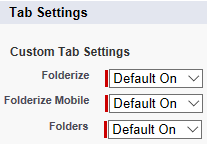
In addition there is a tab called “Folder” associated with a Custom Object also called “Folder”. In the default configuration, the Folder Object is not available to users. Folder Object links go directly to the Folderize app page, to be managed there. (In other words, the standard view of the Folder Object has been overridden.) The main purpose for the Folder Tab is to make folder names available to Salesforce Global Search.
If folder names do not appear in global search results, the Folder Tab’s permission may have defaulted to disallowed. Turn it on by enabling that Tab for for the appropriate Profiles. You also may need to enable the Custom Object Folder that it is associated with.
Renaming Tabs
Folderize is a Salesforce “managed package” which does not permit tabs to be renamed the normal way, but you can rename its tabs using Translation Workbench as follows.
If you are not already designated a translator:
Setup | Translation Workbench | Translation Settings
Make your language active, if not already; then
Edit | Identify Translators for this Language | [select user] | Save.
Now: Setup | Translation Workbench | Override.
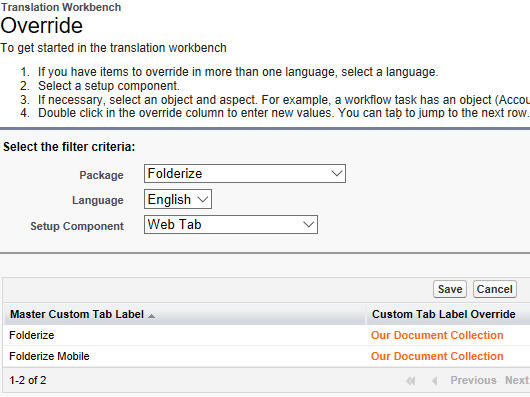
Select package Folderize, your language, and setup component Web Tab.
Separately for both Folderize and Folderize Mobile, double click the empty cell under the column Custom Tab Label Override and set a new name. Save.
The page header within Folderize Mobile does not automatically display its tab name. Instead, to rename the header:
Setup | App Setup | Create | Custom Labels
Find label FolderizeMobileHeader and open its details.
Click New Local Translations/Overrides and enter the desired name for your language.
To change the tab style of the Folderize page, go to Installed Packages, select Folderize, then select the Folderize tab (not the Folder tab) and edit the custom tab definition.